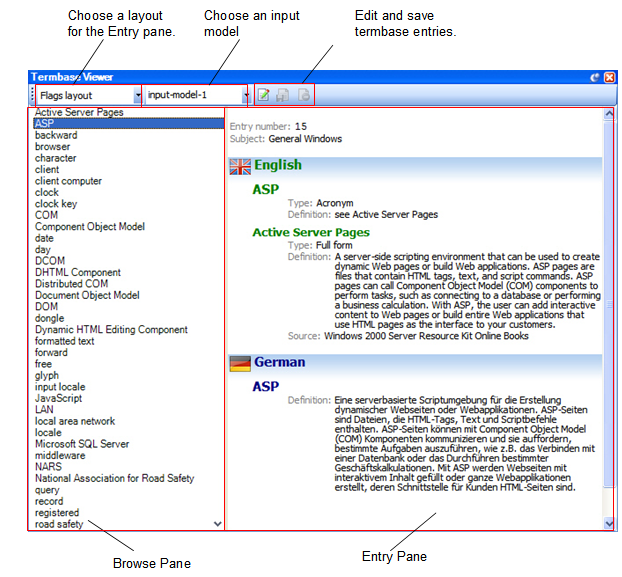
The Termbase Viewer window in the Editor view is used to:
Browse the terms.
View details of a termbase entry.
Browse the termbase.
Add a new termbase entry.
Edit an existing termbase entry.
To display the Termbase Viewer window:
Select View > Termbase Viewer from the menu bar. The terms from the default termbase are listed here in alphabetical order.
Box/Button |
Description |
Layouts control the appearance of termbase entries in the Entry pane. They define which fields are displayed and how they are displayed. Choose a layout from the drop down list here and it is immediately applied to the termbase entries in the Entry pane. |
|
An input model contains a set of rules that determine which fields are displayed or can be changed. If you change input models you will see different termbase fields. If no input models are available from the list the default input model is used. For more information, refer to the SDL MultiTerm Help. http://producthelp.sdl.com/SDL%20MultiTerm%202009/client_en/SDL_MultiTerm_2009.htm |
|
Entry pane |
This is where termbase entries are displayed and edited. When you select a term from the Browse pane or the termbase entry is displayed in the Entry pane. When you open a new termbase entry it replaces the one that is currently displayed. |
|
Edit this Entry Click this to open the termbase entry in edit mode in the Entry pane. Here you can make changes to the field values in the termbase entry. |
|
Save this Entry Click this to close and save a new entry or close and save changes to an existing entry. |
|
Cancel Editing Click this to cancel any changes made to a termbase entry in edit mode or to cancel the creation of a new termbase entry. |
|
|
You can browse though the terms using various methods. When you select a term from the Browse pane, the termbase entry which contains the term is displayed in the entry pane for viewing and editing. |
You can navigate through the list of terms using the following methods:
Browse Method |
Description |
||
|
The up and down arrows on your keyboard move the selection up or down the terms one by one. |
||
Mouse click |
Click a term to display the termbase entry in the Entry pane. |
||
Mouse scroll wheel |
Scroll the mouse wheel to move continuously up or down the list of terms. |
||
Page Up Page Down |
Press Page Up or Page Down to move through the list of terms, page by page. A page in the Browse tab = all of the terms currently displayed in the tab.
|
||
Search while typing |
Type a series of letters to find terms that begin with the letters. For example, to go to the term character type c then h then a. As you continue to type, SDL MultiTerm will continue to find terms that match what you have typed.
|
||
Up and down arrows in the Browse pane |
An arrow at the top or the bottom of the list indicates that there are more terms to browse. Click an arrow to move up or down one term. To move up or down one page, hold down the Ctrl key and click the up or down arrow. |


