Scope
Scoping allows you to determine how many words are in a particular folder or asset, and how much translation will cost, based on a selected scoping configuration, target locales, TM, Machine Translation configuration (if uploaded and configured), and the cost model associated with the scoping configuration selected for the project.
Tip: Set up a cost model ( Management > Linguistic Tool Setup > Cost Model Setup ) and scoping configuration ( Management > Linguistic Tool Setup > Scoping Configurations ) before using the scoping tool.
To scope a folder or asset
  1. There are different contexts for scoping assets. In the WorldServer Explorer, you can select the folder or asset to scope and choose Project > Scope . Alternatively, you can click in the Upload Files and Create Project from the WorldServer Home page, then, with assets selected, click the Get Scoping and Estimates link. Both contexts take you to the Scope dialog.
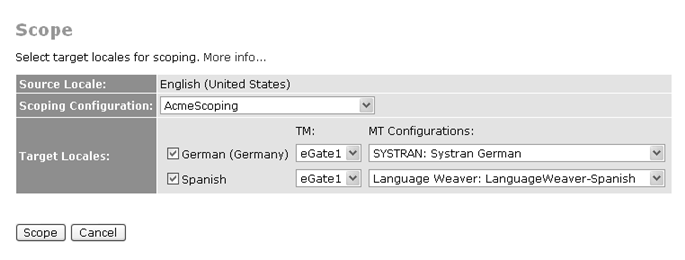
  2. Specify the scoping configuration, target locales, and, for each locale, a TM and, if you have any uploaded and configured, a Machine Translation configuration.
    Figure 3: Setting up to Scope Assets
  3. Click Scope.
    WorldServer performs initial scoping and displays the results in a table. The table displays the number of words in each translation memory match category. If the scoping configuration has a cost model associated with it, you can select the cost model and get an estimated cost to translate, based on the selected cost model.
  4. You can select different scoping configurations (and cost models) to apply to the scope. Each time you select a different scoping configuration and/or cost model, WorldServer updates the table with refreshed scoping information.
    Note: The selected scoping configuration determines which, if any, cost models are available to apply to the scope.
  5. You can choose to download the cost model as a comma-separated values (CSV) file by clicking Download as CSV file and saving the file to a local drive.
  6. Click OK.
Child Topics
Scoping Folders or Assets
Parent Topic
Explorer Tools for Projects