WorldServer tracks translatable word counts and percentage completion
of translation work in projects and tasks. These metrics are available
and regularly updated for every task going through the system.
On the task level, you can watch the progress of each task. On the
project level, you can monitor the progress of the project as a whole,
which is an aggregation of all the progress of active or completed
member tasks.
To view the
aggregated progress of all the tasks in a project, you can go to the page and display columns for any or all of the following:
 |
Note: These metrics are available
only for task assets that have been segmented in projects. No information
is available for tasks that have not executed the Segment Asset step
in the workflow. Also, all word counts are based on the number of
words in the source segment. These counts are not influenced at
all by the number of words in the target segment.
|
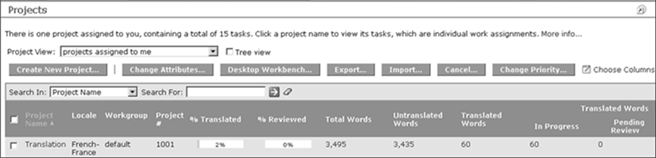
When you click on a % Translated, % Reviewed, or a word count value for a project, or go
to the page and click View translation progress..., the Translation Progress
for Project <project
name> page displays.
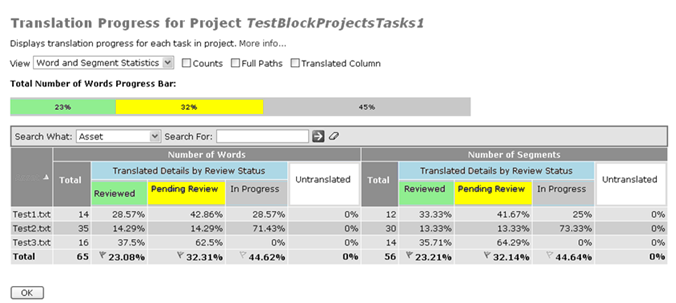
This page focuses on progress information for the project, and offers,
in addition to the information available on the Project List page,
the choice of viewing statistics for segments as well as for words.
You can keep the display simple, and display only the percentages
of review status (Reviewed, Pending Review, or In Progress) for translated words or segments.
|
Note: The Reviewed and Pending Review numbers derive
from the number of segments with Finished and Pending segment review
status, respectively, in the WorldServer Browser Workbench. The In Progress number derives
from the sum of No Status and Rejected segment review statuses.
|
The color-coded progress bar shows the percentages of reviewed, pending
review, in-progress, and untranslated words or segments. You can choose
to also show word and segment counts, full asset paths, and the total
amount of translated words or segments (which is a sum of reviewed,
pending review, and in-progress).
To view the progress of individual tasks in a project, go to the page, and click the % Translated, % Reviewed or a word
value for the task. The following pop-up displays:
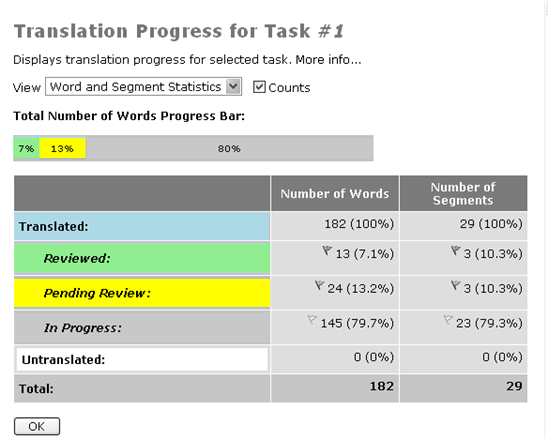
This Translation Progress
for Task #N
screen displays, with a color-coded progress bar showing
the percentages of reviewed, pending review, in-progress, and untranslated
words or segments for this task. You can show the word and segment
counts by checking the Counts checkbox. Next to the Reviewed, Pending Review, and In Progress number is the
segment review status icon for that segment.