Viewing, Proposing, Approving, Adding,
Editing, and Deleting Terms
The
View Term page, for a user with minimal permissions, looks like this:
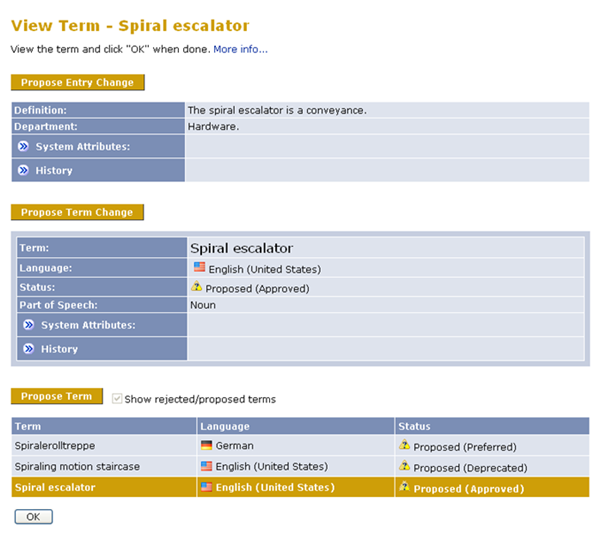
Figure 50: View Term page for user with minimal
permissions
The term viewer has three main sections.
-
The top section is the
entry section. It displays term entry-level attributes and their change history,
if any.
-
The middle section is the main
term
section. It displays the focused term in detail, including its
status, attributes and history. The term is the one you clicked on
when you opened this window.
-
The bottom section is the
entry terms
section. It lists all terms in this term entry, with the focused
term's listing highlighted. You can change which term displays in
the term section by clicking on one of these terms: the current focused
term will be replaced by the term you select. To show and hide
Proposed and
Rejected terms, click
Show rejected/proposed terms.
The View Term page allows you to view, add, or change term entry
information. Depending on your permissions, you see various buttons
in this page that allow you to perform different functions. The following
figure shows what the page looks like to a user with full permissions.
For details of how permissions affect this page, see the "Terminology
Database Security" topic.
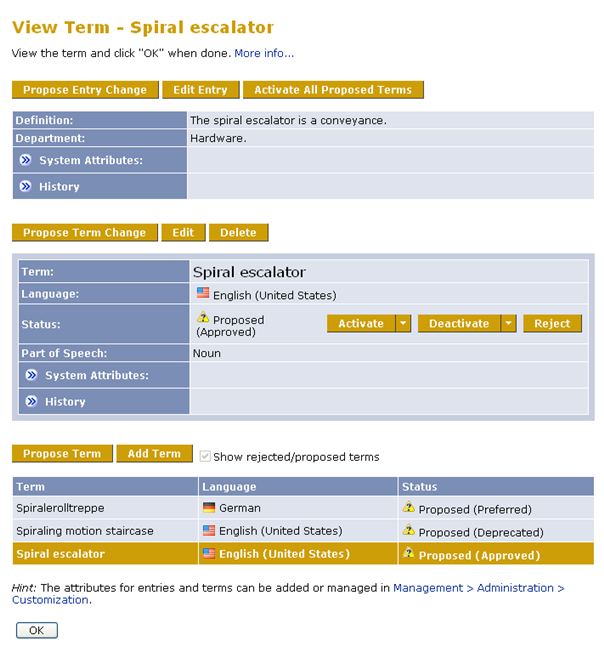
Figure 51: View Term page for user with full permissions
The entry section of the Term View page contains the following controls:
-
Propose Entry Change: This button allows you to propose a change to the term entry's
attributes.
-
Edit Entry: This button allows you to edit the term entry's custom attributes.
-
Activate All Proposed
Terms: Clicking this button changes all terms in this
term entry that have
Proposed status to
Active status. For
more information on term statuses, see the "Term Status" topic.
-
History: This field shows a prior version of the term entry's attributes.
-
Proposed Changes: If the term entry has change proposals (typically submitted using
the
Propose Entry Change button), this row becomes visible and allows you to manage term
entry change proposals.
The term section of the View Term page contains the following controls:
-
Propose Term Change: This button allows you to propose a change the term or its attributes.
-
Edit: This
button allows you to modify the term or its attributes.
-
Delete:
This button deletes the term.
-
Managing statuses: The buttons in the
Status field allow
you to change a term's status. For more information on term statuses,
see the "Term Status" topic.
-
Term History: This field shows a prior version of the term.
-
Proposed Changes: If this term has change proposals (typically submitted using the
Propose Term Change button), this row becomes visible and allows you to manage term
change proposals.
The entry terms section of the View Term page contains the following
controls:
-
Propose Term: This button allows you to propose a new term for this term entry.
-
Add Term: This button allows you to add a new term for this term entry.
