Enter a term on which to search in the translation memory and click
the Search button (the arrow in the little green box).
You may also use wildcards. WorldServer updates the page to display
all matches to the search.
Select a source entry to view the translation memory entry.
WorldServer displays the Translation Memory - Edit Entry page. On this page, you
can see information about the entry, including:
The source locale, with a text box containing the content for that
segment
If a bracket {} button appears below the
text box, the segment contains markup data.
The target locale, with a text box containing the content for that
segment
If a bracket {} button appears below the
text box, the segment contains markup data.
The file from which the entry originated
Segment Editing Status (whether the entry is locked)
If live translation memory mode is enabled, Translation Status (Reviewed,
Pending Review, Rejected)
Note: If you do not
have "Can change status of TM entries" permission, you will be able
to see the status, but will not be able to change it.
Any custom attributes defined in Management
> Administration
> Customization with TM Entry selected
System Attributes, including the user that created and the user that
last modified the entry and when, and the Import Job ID
Entry History (if the entry has a history)
Edit the segments as necessary.
See Editing Entry Markup Data and Locking a TM entry for more information.When
you modify segments in the Translation Memory - Edit Entry page, the history of these changes is displayed for the entry in
the Entry History section at the bottom of the editor.
Click OK to end the session and save your changes.
WorldServer returns
to the Tools
> Translation Memories
> Translation Memory:
<TMname> page.
Note: You also can access the translation
memory entry editor from the WorldServer translation workbenches by
clicking the translation memory matches button for a segment.
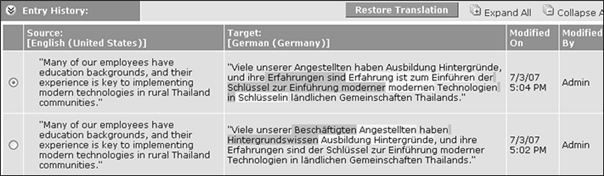
Using TM Entry History
The example shows the history of a modified segment.
The previous wording
is highlighted in gray, and the new wording is highlighted in white.
If you want to restore a previous version of the entry, perhaps because
you accidentally replaced a more appropriate translation, you can
select the translation that you want to restore, then click the Restore Translation button. Clicking this button restores the entry to the state you
select, and adds the restored translation to the top of the history
list, with changes from the previous translation highlighted.
Editing Entry Markup Data
If a TM entry has markup tags, or placeholders, they can be of two
types: standalone tags or paired tags.
Standalone tags, as the name implies, are independent of other markup
tags.
Paired tags must adhere to the following validation rules:
Every opening tag must have a closing tag within the segment.
Every closing tag must follow the opening tag within the segment
(whether immediately or later in the segment text.)
Tag pairs cannot overlap other tag pairs. A tag pair (both the start
and end tags) must be completely embedded within another tag or completely
external to another tag pair.
If you delete an opening or closing tag in the source text, its
counterpart must be deleted AND the corresponding tag pair in the
target text must also be deleted.
If a bracket {} button appears below the
source or target content, the TM entry has markup tags. Click the
button to see the Placeholders list, which shows detailed information
on the markup tags in the segment. This information can include:
Column One - Placeholder
ID
Column Two - Type of Tag
Listed in increasing
order from the beginning to the end of the segment
Standalone
Opening Tag - indicates the paired closing
placeholder ID
Closing Tag - indicates the paired opening
placeholder ID
Locking a TM entry
Locking an updated segment and saving the translation to the translation
memory results in the TM entry being locked. Unlocking the segment
and updating the translation unlocks the TM entry when the translation
is stored to the translation memory. Leveraging a locked TM entry
results in the asset segment being locked when the match results in
a SPICE or ICE match depending on the auto-locking option enabled.
There are three translation memory configuration options for controlling
segment auto locking, and they are all set to false by default. The
following conditions can cause segments to be locked, depending on
whether you have set them:
SPICE match with Locked TM entry
ICE match with Locked TM entry
ICE match with Locked TM entry from same asset
These options come
into play when the asset is being leveraged against the translation
memory containing the locked TM entries. (Leverage occurs when the
asset is being segmented or when the user triggers a Reapply TM event.)
For information about the properties you need to set for each option,
see the WorldServer Translation Memory
Administration Guide.
The TM entry lock
status can be updated directly via the Lock Entry/Unlock Entry button in the Translation
Memory - Edit Entry page, allowing you to have more control
over whether the lock persists when a segment is modified.
Locking and unlocking segments requires opening an asset in a WorldServer
translation workbench via a human step that has step locking enabled.
Segments cannot be locked or unlocked explicitly in ad hoc mode. However, auto-locking
takes effect in ad hoc mode. Segments
that are locked based on the auto-locking mechanisms appear as being
locked in a WorldServer translation workbench, and are not editable.