To add an SDL Trisoft Mount
When you set up a
mount in WorldServer, you are making a connection to an existing SDL
Trisoft configuration. You need to match the configuration and status
values in SDL Trisoft for your WorldServer workflow to operate correctly.
-
Specify the properties described in the following table:PropertyTypeDescriptionProtocolDrop-down listThe protocol used to connect to the SDL Trisoft server, either HTTP or HTTPSServer NameText fieldHostname or IP address of the SDL Trisoft serverPortText fieldPort on which the SDL Trisoft server listens.
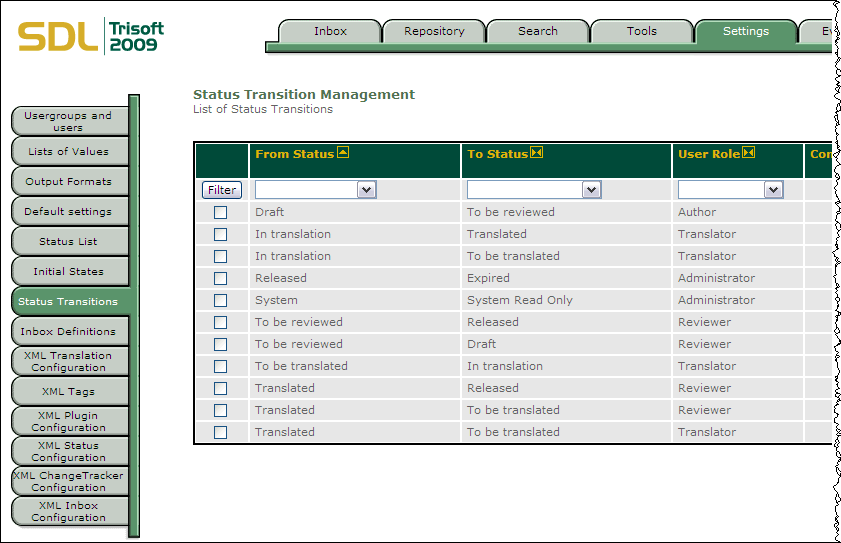
 Note: If the default port is used, this field may be left empty.Application NameText fieldApplication name used when installing and configuring the SDL Trisoft server.Note: The default name is InfoShareAuthor.UsernameText fieldUser name for WorldServer to use when it connects to the SDL Trisoft server. This name must match a valid name identified on the SDL Trisoft Status Transition Management page. WorldServer performs all SDL Trisoft operations as this user, which must have privileges to modify all content being processed by WorldServer.PasswordText fieldPassword for the SDL Trisoft user specified above.Allowed Target StatusesText fieldComma-separated list of the allowed values of SDL Trisoft status of the target content. Default statuses are To be translated, In translation, and Translated. This list must match valid status names identified on the SDL Trisoft Status Transition Management page. The list may contain any number of entries; the maximum length is 255 characters.Locale MappingsDrop-down listsFor each target language, select the language specified in the SDL Trisoft server, and the corresponding WorldServer locale. WorldServer populates these lists with the languages specified in the SDL Trisoft server for translation, and the locales configured in WorldServer. You can add as many locale mappings as you need.