To validate Proposed terms or term entries
with the Validate TD button
To validate a Proposed term or term entry
with a validation project using the Validate TD button,
you must have an appropriate workflow set up. When you click Validate TD, you are
prompted to supply the following:
If, instead, you
chose to validate term entries, when you click OK, term entries in
your terminology database that need approval are sent through your
validation workflow, which creates a project with tasks for each entry,
and each entry can contain multiple terms.
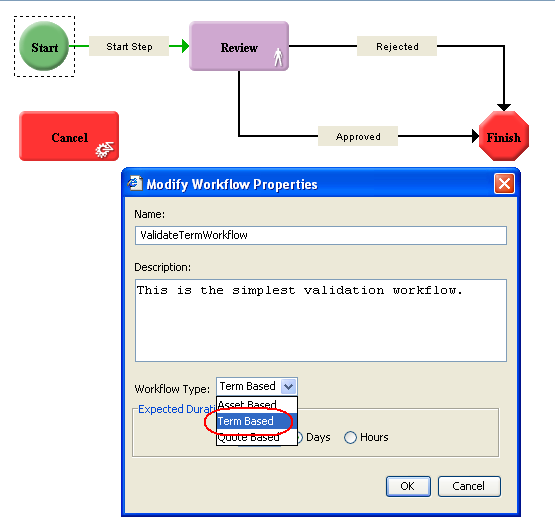
Be sure that the User
Type for the Workflow Role or specific user to whom the Review step
is assigned has Can modify
TD and Can validate
terms and term entries privileges. When an assigned user
with these permissions selects a task in the Task List and clicks Edit, the View Term dialog box
displays for the term and the user can approve the term by selecting or . The user can also choose to Reject the term or Deactivate it As Deprecated. The
term viewer, when opened in this mode, only allows changes or validation
for the term being viewed. You cannot pop open other term viewers
to manipulate other terms. Also, you cannot add or delete other terms
in this term viewer.