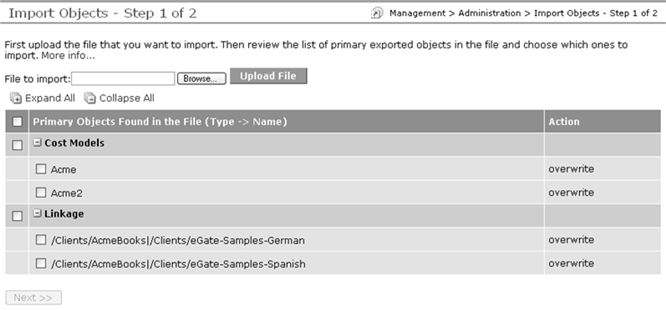
To Import Objects
-
Select the objects to import by checking the box next to them, and click Next.The Import Objects - Step 2 of 2 page gives you the option of listing primary objects only, primary objects plus missing referenced objects, or all referenced objects. The Include missing referenced objects option is selected by default. If you select Include missing referenced objects, WorldServer looks in the instance into which you are importing for any objects referenced by the primary objects you are importing and, if it finds any, lists them. The Include all referenced objects option causes WorldServer to list all objects referenced by those primary objects. Referenced objects are displayed in the list and are identified with the
 icon next to them.
 Note: The list of objects to be imported is analyzed at the time of page load and when you change the import mode. This analysis looks for the following error conditions:
Import cannot proceed because the following objects selected for import will result in inconsistent state. These objects are missing the necessary referenced objects in the target system. Try a different import option or go back to the previous screen and remove these objects from the selected list.
The missing objects are listed. -
If you are satisfied that the list of objects to import is complete, click Import.Note: You can adjust your list by clicking Previous and unchecking boxes for objects you don't want to include in the import.WorldServer displays a screen listing the objects successfully imported. If any of the objects cannot be imported, this import log gives the reason, for example:
Importing User "markbrown"...
User "markbrown" was not imported. Details: Locale "jp_jp" not found.
You can return to the export instance and redo the export, making sure that the missing objects are included (jp_jp locale in this example) and repeat the import.