 at the top of the navigation
pane. To expand the navigation pane, click the Expand
the navigation pane button
at the top of the navigation
pane. To expand the navigation pane, click the Expand
the navigation pane button  .
.
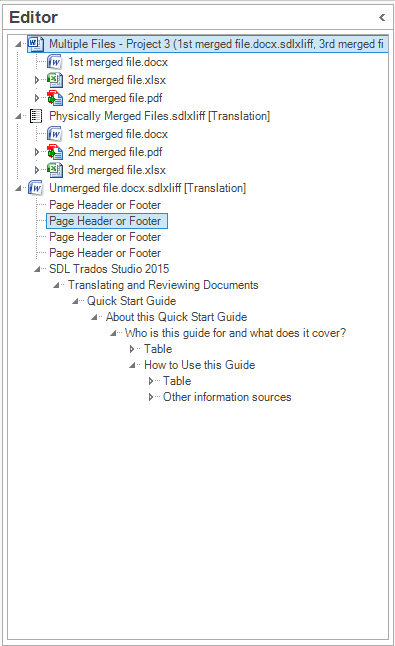
In the Editor view, the navigation pane shows all of the documents that are currently open in the Editor window. Drag-and-drop documents here to quickly open them for translation.
Each document appears as a branch in the navigation tree. Select a document from the tree to make it the active document.
By default the navigation pane is expanded. To minimize the navigation
pane, click the Minimize the Navigation Pane
button at the top of the navigation
pane. To expand the navigation pane, click the Expand
the navigation pane button .
 |
Navigating Individual Documents
|
You can expand a document in the navigation tree to reveal its structure. For example, a document may contain headers, footers and tables, and these appear as document components in the navigation tree. Once you have expanded a document, you can select the part of the document you want to work with and Editor window automatically scrolls the document until the selected document part is displayed in the Editor window. A When you click a plus sign, it changes to
|
||
Merged Files |
Several files can be merged into one single, bigger document. You can merge files physically when creating a new project, or merge them virtually, at any time in the Files view. Files merged physically are saved as one file after translation whereas files merged virtually are split back and exported from Studio as individual files. You can identify files merged physically by the SDLXLIFF
Click here for more information about merged files. |
 plus sign indicates
that a document can be expanded. Click
plus sign indicates
that a document can be expanded. Click  a minus sign. Click
  icon next to the document
name. Files merged virtually show the icon of the first type of
merged file and are their name always begin with
icon next to the document
name. Files merged virtually show the icon of the first type of
merged file and are their name always begin with