How to Add Terms to a Termbase
This topic describes how to add new terms to an SDL MultiTerm termbase from your active document in the Editor view.
You can only add terms to the active termbase. The first time you add a new term, you are prompted to trust SDL Trados Studio. Check the Always trust content from this publisher box and click Run to close the security warning and continue adding the term.
Adding a term with review
Add a term with review when you want to check the new term and the available termbase fields before manually saving the new entry.
In the Editor window, select the source language term and then do one of the following:
If |
Then |
you have already created a translation for the term in the target segment, |
|
you have not yet created a translation for the term, |
Click
on the source language term and select Home
tab > |

- Review the new entry in the Termbase Viewer window. If you want to edit the termbase entry do one of the following:
If |
Then |
you want to edit the contents of a field, |
click the field label or double-click inside the field. This opens the field for editing. Make the required change and click outside the field or press Enter to close the field. You can also use the Tab key to close the current field and open the next one for editing. |
you want to add a field that is not currently displayed, |
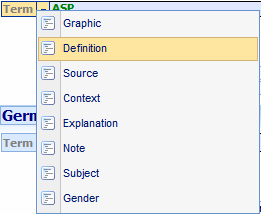
look for field labels that have a down-arrow beside them. Click each down arrow to display a list of the fields which can be added below the field. When you know where you want to add the field, click the appropriate down arrow and select the required field from the list.
The selected field is opened for editing. |
When you have finished editing the entry, click Save this Entry
 . The new entry is saved to the
termbase and displayed in the entry pane.
. The new entry is saved to the
termbase and displayed in the entry pane.
Adding a term without review
Add a term without review when you want to add new terms to the termbase in one click, without entering the Term Edit mode and without manually hitting the Save Entry button.
In the Editor window, select the source language term and then do one of the following:
If |
Then |
you have already created a translation for the term in the target segment, |
|
you have not yet created a translation for the term, |
Click on the source language term and select Home tab > Quick Add New Term. |

Editing an existing entry
If the selected term already exists in the termbase, a prompt is displayed asking you if you want to edit the existing termbase entry:
Click Yes to open the existing entry in edit mode in the Termbase Viewer window.
Click No to create a duplicate entry in the Termbase Viewer Window.
Click Cancel to not create a new entry or open the existing entry.
Related Topics
Overview: Working with Termbases
Topic: Published: November 10, 2014