

| Applying the Segment Pair Confirmation Levels |
In this chapter you will learn how to process the BIL unit status information of a given BIL file and apply it to the corresponding segment pair status used by the SDL XLIFF format.
 Process the Segment Pair Status
SDL Trados Studio 2017 applies various confirmation levels to segment pairs, e.g. draft, translated, approved, etc. Below you see a list of the available confirmation level values that are used in the SDL XLIFF format:
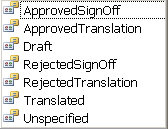
The status attribute of the unit element is the direct equivalent to the segment pair object in SDL Trados Studio 2017. To keep things simple let us assume that units in a BIL file contain the following status values, which can be mapped to the SDL XLIFF confirmation levels as outlined below:
| BIL | SDL XLIFF |
|---|---|
| new | unspecified |
| fuzzy | draft |
| exact | translated |
You can apply the appropriate status value to a segment pair object through the ConfirmationLevel property. First, enhance the CreateParagraphUnit() helper function by adding the following line, which calls another helper function that maps the confirmation level values.
segmentPairProperties.ConfirmationLevel = CreateConfirmationLevel(xmlUnit.Attributes["status"].Value);The complete CreateParagraphUnit() function should look as shown below:
// helper function for creating paragraph units
private IParagraphUnit CreateParagraphUnit(XmlNode xmlUnit)
{
    // create paragraph unit object
    IParagraphUnit paragraphUnit = ItemFactory.CreateParagraphUnit(LockTypeFlags.Unlocked);


    // create segment pair object
    ISegmentPairProperties segmentPairProperties = ItemFactory.CreateSegmentPairProperties();
    // assign the appropriate confirmation level to the segment pair
    segmentPairProperties.ConfirmationLevel=CreateConfirmationLevel(xmlUnit.Attributes["status"].Value);

    // add source segment to paragraph unit
    ISegment srcSegment = CreateSegment(xmlUnit.SelectSingleNode("source/seg"), segmentPairProperties);
    paragraphUnit.Source.Add(srcSegment);

    // add target segment to paragraph unit if available
    if(xmlUnit.SelectSingleNode("target/seg") != null)
    {
        ISegment trgSegment = CreateSegment(xmlUnit.SelectSingleNode("target/seg"), segmentPairProperties);
        paragraphUnit.Target.Add(trgSegment);
    }

    #region "context"
    // create paragraph unit context
    string id = xmlUnit.SelectSingleNode("./@id").InnerText;
    if(xmlUnit.SelectSingleNode("type/@spec")!=null)
    {
        string spec = xmlUnit.SelectSingleNode("type/@spec").InnerText;

        paragraphUnit.Properties.Contexts=CreateContext(spec, id);
    } else {
        paragraphUnit.Properties.Contexts = CreateContext("Paragraph", id);
    }
    #endregion

    #region "comments"
    // extract comment (if applicable)
    if(xmlUnit.SelectSingleNode("comment")!=null)
    {
        paragraphUnit.Properties.Comments = CreateComment(xmlUnit.SelectSingleNode("comment").InnerText);
    }
    #endregion

    return paragraphUnit;
}
Now add the helper function that uses a switch statement to map the BIL status values to the SDL XLIFF confirmation levels:
private ConfirmationLevel CreateConfirmationLevel(string BilStatus)
{
    ConfirmationLevel sdlxliffLevel = ConfirmationLevel.Unspecified;

    switch (BilStatus)
    {
        case "new":
            sdlxliffLevel = ConfirmationLevel.Unspecified;
            break;
        case "fuzzy":
            sdlxliffLevel = ConfirmationLevel.Draft;
            break;
        case "exact":
            sdlxliffLevel = ConfirmationLevel.Translated;
            break;
        default:
            sdlxliffLevel = ConfirmationLevel.Unspecified;
            break;
    }

    return sdlxliffLevel;
}
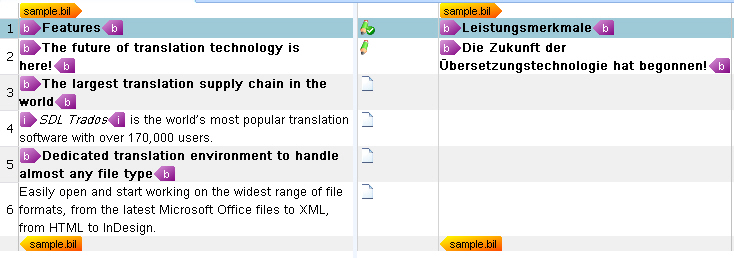
After making the above additions to the parser class, the SDL XLIFF document should look in SDL Trados Studio 2017 as shown below. Note that the confirmation levels are visualized through different icons, which are displayed between the source and the target segments.
 CommunityComments