

| Creating a New Assembly for the Settings UI |
In this chapter we will show you how to create a separate project for adding a user interface to our file type plug-in.
 Create a New Project
Let us assume that you want to add a user interface to your file type plug-in, so that users can configure certain options at runtime. Example: suppose that sometimes the product code lines need to be locked, but sometimes they may require localization. So, users should be able to make this determination on a case-by-case basis for each document.
In order to achieve this you need to expose a configurable setting to a user interface. Based on the setting applied to the user interface the file parser should later lock the product code lines or expose them for translation.
Rather than adding a user interface control to your existing project, you should create a second project for building a separate UI assembly. The reason for this is that you can build different user interfaces for the same file type plug-in. For example, you could have a desktop-based user interface as well as a Web-based UI.
For the type of plug-in discussed in this chapter, we require the SDL Trados Studio 2017 Plug-in Project template.
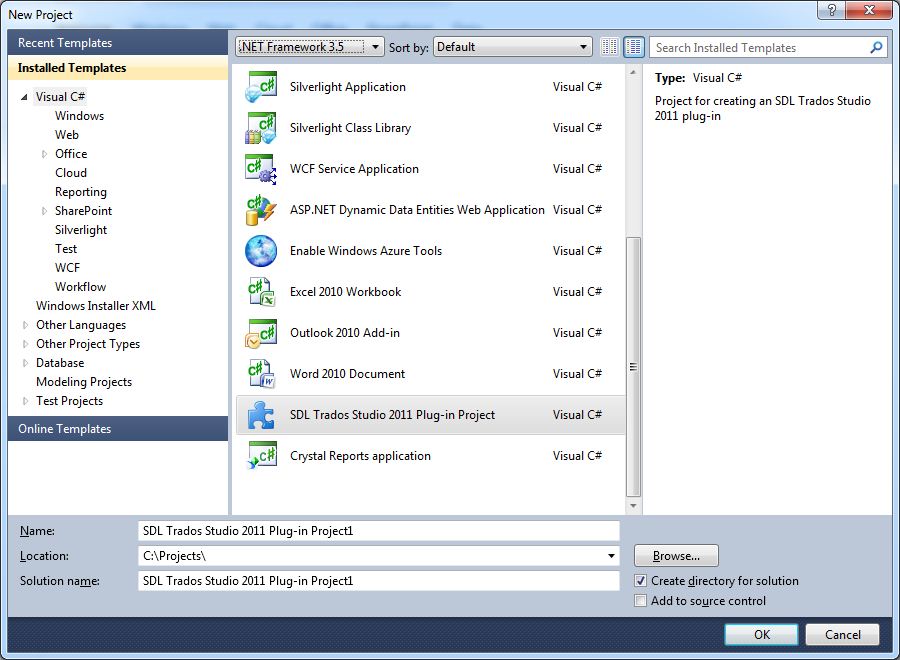
By default, when you create a project based on this template, the project name will be e.g. SDL Trados Studio 2017 Plug-in Project1. Change the project name to Sdl.Sdk.FileTypeSupport.Samples.SimpleText.WinUI for our sample implementation.
Add the Required ReferencesThe plug-in template will come with the Sdl.Core.PluginFramework.dll reference.
Now add the following libraries as references to the new UI project:
- Sdl.Core.Settings.dll
- Sdl.FileTypeSupport.Framework.Core.Settings.dll
Set the output path for building your project to the installation folder of SDL Trados Studio 2017, e.g. C:\Program Files\SDL\SDL Trados Studio\Studio5.
 Note Note |
|---|
Remember to generate a key to sign the assembly. |
See AlsoCommunityComments