

| Implement the User Interface |
In this step you will learn how to add a user interface to your plug-in, through which end users can configure the verification settings at runtime.
 Add a User Control
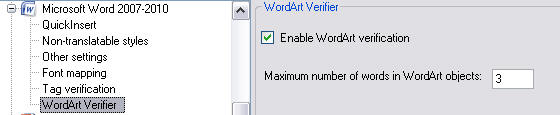
Implement the graphical user interface by adding a user control, which you can name e.g. SettingsUI.cs. This is the interface that users will see when configuring the file type plug-in in SDL Trados Studio 2014 through e.g. Tools > Options > File Types. Our simple bilingual verifier will implement two settings through with users can enable/disable the word count check and specify the maximum number of words. First, add a check box to the user control, which you call cb_CheckWordArt.
Furthermore, add a text field control element (named txt_MaxWordCount) into which users can enter the maximum number of words allowed for WordArt objects at runtime. The default value should be 3.
The user control should look as shown below:
Now switch to the code view of your newly-added user control. Your class needs to reference the following namespace:
- Sdl.FileTypeSupport.Framework.Core.Settings
The Settings BundleEach plug-in uses a settings bundle to store and retrieve settings. The mechanism for doing that is provided in a separate class called VerifierSettings, which we will implement later (see Loading and Saving the Settings). For now, we create an object based on the VerifierSettings class, through which we access the plug-in properties:
VerifierSettings _settings;
Initialize the Plug-in User InterfaceWhen the user raises the plug-in user interface, the control element should be set according to what is stored in the settings bundle, which is handled through the _settings object (which we declared previously).
public VerifierSettings Settings
{
    get
    {
        return _settings;
    }
    set
    {
        _settings = value;
        UpdateControl();
    }
}
public void UpdateControl()
{
    cb_CheckWordArt.Checked = _settings.CheckWordArt;
    txt_MaxWordCount.Text = _settings.MaxWordCount.ToString();
}
Save the Settings to the Settings BundleConversely, the user interface needs to save the check box setting to the settings bundle, e.g. when the user raises the plug-in UI, changes the check box setting, and then clicks OK to apply the changed setting to the settings bundle.
The first setting to save is the state of the check box (checked or unchecked). According to the check box the CheckWordArt property will be set to True or False:
private void cb_CheckWordArt_CheckedChanged(object sender, EventArgs e)
{
    _settings.CheckWordArt = cb_CheckWordArt.Checked;
}
The second setting is the maximum word count, which is entered into the UI as a string value. The following function converts the text value to an integer, and sets the MaxWordCount property of the VerifierSettings class, if the value is greater than zero:
private void txt_MaxWordCount_TextChanged(object sender, EventArgs e)
{
    int tempvalue = 0;
    Int32.TryParse(txt_MaxWordCount.Text, out tempvalue);
    if (tempvalue > 0)
    {
        _settings.MaxWordCount = tempvalue;
    }
}
Putting it all TogetherThe complete class should look as shown below:
using System;
using System.Collections.Generic;
using System.ComponentModel;
using System.Drawing;
using System.Data;
using System.Linq;
using System.Text;
using System.Windows.Forms;
using Sdl.FileTypeSupport.Framework.Core.Settings;


namespace Sdl.Sdk.FileTypeSupport.Samples.WordArtVerifier
{
    /// <summary>
    /// Implements theuUser interface through which the settings of the verification plug-in
    /// are configured, i.e. the maximum word count and enabling / disabling the verification.
    /// </summary>
    public partial class SettingsUI : UserControl, IFileTypeSettingsAware<VerifierSettings>
    {
        /// <summary>
        /// Create a settings object based on the VerifierSettings class.
        /// </summary>
        #region "SettingsObject"
        VerifierSettings _settings;
        #endregion

        /// <summary>
        /// Initalize the user interface control by setting it to the
        /// setting value stored in the settings bundle.
        /// </summary>
        public SettingsUI()
        {
            InitializeComponent();
        }

        /// <summary>
        /// Reset the user interface control to its default value, which is
        /// checked, i.e. the verification functionality should be enabled
        /// by default.
        /// </summary>
        #region "UpdateControl"
        public void UpdateControl()
        {
            cb_CheckWordArt.Checked = _settings.CheckWordArt;
            txt_MaxWordCount.Text = _settings.MaxWordCount.ToString();
        }
        #endregion


        /// <summary>
        /// Save the settings based on the value of the check box.
        /// The setting is saved through the VerifierSettings class, which
        /// handles the plug-in settings bundle.
        /// </summary>
        /// <param name="sender"></param>
        /// <param name="e"></param>
        #region "SaveSettingEnabled"
        private void cb_CheckWordArt_CheckedChanged(object sender, EventArgs e)
        {
            _settings.CheckWordArt = cb_CheckWordArt.Checked;
        }
        #endregion

        /// <summary>
        /// Save the settings based on the value of the maximum word count text field.
        /// Note that the word count is a string value, which needs to be converted to an integer.
        /// The setting is saved through the VerifierSettings class, which
        /// handles the plug-in settings bundle.
        /// </summary>
        /// <param name="sender"></param>
        /// <param name="e"></param>
        #region "SaveSettingMaxCount"
        private void txt_MaxWordCount_TextChanged(object sender, EventArgs e)
        {
            int tempvalue = 0;
            Int32.TryParse(txt_MaxWordCount.Text, out tempvalue);
            if (tempvalue > 0)
            {
                _settings.MaxWordCount = tempvalue;
            }
        }
        #endregion

        #region "Initialize"
        public VerifierSettings Settings
        {
            get
            {
                return _settings;
            }
            set
            {
                _settings = value;
                UpdateControl();
            }
        }
        #endregion
    }
}
See AlsoCommunityComments