Displaying and Managing Windows
In the Projects,
Files,
Editor
and Translation Memories
views, you can rearrange the windows that are displayed.
Window Navigation Buttons
The following three buttons appear in the top right-hand corner of every
window:
 Menu Menu
|
There
are two options on the Menu
button:
Floating
- Click this to undock the window, so that it floats above
the application. When a window is floating you can drag it
to another location, in the view or on your desktop.
To undo the floating behavior of the window, and to position
it in the default position, double-click the window title
bar. Auto Hide
- minimizes the window. A tab containing the window name is
displayed. Click this tab to redisplay the window. |
 Auto
Hide Auto
Hide
|
Click
this to auto-hide the window. In auto-hide mode, the window becomes
hidden when you click away from it.
When you want to view the window again, click the tab containing
the window name.
To stop the auto-hide behavior of the window, click the Auto Hide button again.
|
 Close Close
|
Click
this to close the window. When the window is closed, you can display
it again by selecting the window name from the View
menu. |
Moving Windows
You can drag windows into a different position in the view. You can
also drag windows out of the view and onto your computer desktop and work
with them there.
To move a window, drag it
by their title bar.
To move a window back into
its default location, double-click the window's title bar.
When you are dragging a window, direction indicators appear on screen.
They show you the possible locations where the window can be docked. This
is what the indicators look like:
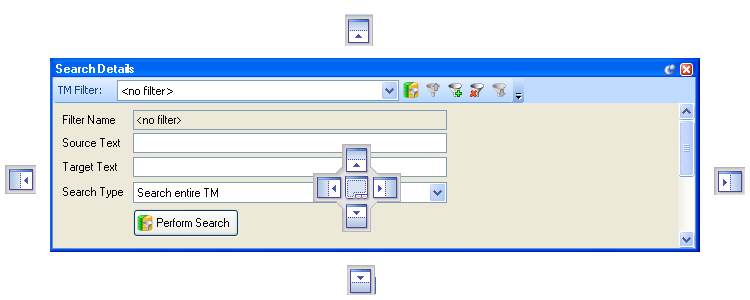
To dock the window in one of the indicated locations, drag the mouse
over the direction indicator and then release the mouse.
To float a window over the view without docking the window, drag the
window into the required position and release the mouse.
Resetting Windows
To restore all windows to their default locations, select View
> Reset Window Layout from the menu bar.
Related Topics
Overview:
Screen Layout and Functionality
Overview: The Translation
Memories View Windows
Overview:
Project View Windows
Overview: Files
View Windows
Overview:
Editor View Windows