SDL Trados Studio functionality is divided between these views:
The Home view is where you can access some common commands, for example you can access the Open Document or New Project commands. If you select a command from the Home view, the layout will change to the appropriate view, or SDL Trados Studio will open an application to perform the action. Click here for more information.
The Projects view is where you view and work with projects. Select a project to view detailed information about a project and project files, and can track project and file status. Click here for more details.
The Files view is where you work with project files. Click here for more details.
The Reports view is where you view project reports. The reports provide detailed translation analysis figures which you can use in the project planning and budgeting process. Click here for more details.
The Editor view is where you translate and review documents. Click here for more details.
This Translation Memories view is where you create and manage translation memories. Click here for more details.
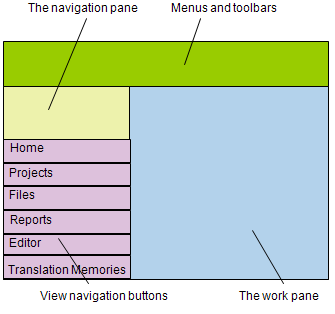
Each view has the same basic layout:
Menus and toolbars are at the top of the view.
The navigation pane is on the left of the view.
The work pane is on the right of the view.
The view navigation buttons are at the bottom of the navigation pane.
The name of the currently displayed view is at the top of the navigation pane.
To display another view, click the appropriate view button or select the view from the View menu.
Some menus and toolbars appear in more than one view and some appear only in one view. For example, the File menu appears in the all views, but the Maintenance menu appears only in the Translation Memories view.
Menus which appear in more than one view may be contain the same options in all views, or may contain different options in different views.
You can drag toolbars into different positions within the view or onto your computer desktop.
By default the navigation pane is expanded. To minimize the navigation
pane, click the Minimize the Navigation Pane
button  at the top of the navigation pane.
To expand the navigation pane, click the Expand
the navigation pane button
at the top of the navigation pane.
To expand the navigation pane, click the Expand
the navigation pane button  . The
display on the navigation pane changes depending on which view is selected:
. The
display on the navigation pane changes depending on which view is selected:
The Projects view navigation pane is where you filter which projects are displayed in the work pane.
The Files view navigation pane is where you select the different language folders in the active project. Select a language from the drop-down list to display the language folders its subfolders in the navigation pane. Select a folder to display the list of files contained in that folder in the work pane.
The Reports view navigation pane is where you select reports to display in the work pane.
The Editor view navigation pane is where you select the documents that are currently open in the view. Each document appears as a branch in the navigation tree. Select a document from the tree to make it the active document and display it in the work pane.
The Translation Memories view navigation pane is where you select translation memories, translation memory templates and language resource templates that are currently available in the view. Each is displayed in a folder in the navigation tree. You can double-click on a translation memory to display it in the work pane and make it the active translation memory.
In the Projects, Files, Reports and Translation Memories views, when you select an item from the navigation pane, the item is displayed in the work pane.
Overview: Projects View Screen Layout and Functionality
Overview: Files View Screen Layout and Functionality
Overview: Reports View Screen Layout and Functionality
Overview: Editor View Screen Layout and Functionality
Overview: Translation Memories View Screen Layout and Functionality
Overview: Home View Screen Layout and Functionality