Create Project from Result Set
The Validate TD button on the Tools > Term Databases > Term Database: <TD> page has the limitation that it populates a project only with terms having a status of Proposed. To validate term or term entry change proposals, with whatever status they have, you should search for terms or term entries with change proposals and create a project from the search result set using the Create Project from Result Set button in this Tools > Term Databases > Term Database: <TD> page.
Creating a Validation Project for TD Changes
To use the Create Project from Result Set button approach to validating change proposals, perform the following steps:
  1. Search for terms or term entries with proposed changes.
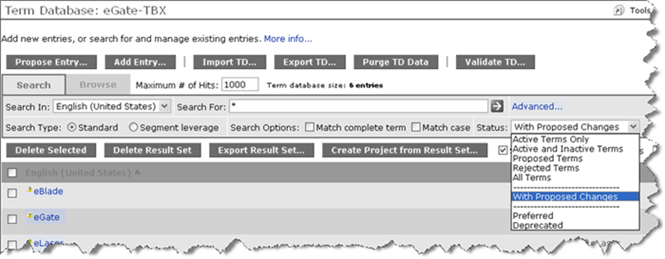
    The Status menu has an option called With Proposed Changes. Selecting this returns term or term entries that have proposed changes. That is, if the term entry has a proposed change or if at least one of its terms has a proposed change, WorldServer retrieves that term entry.
     
     
    Figure 52: Option to search for term or term entries with proposed changes
  2. Click the Create Project from Result Set button.
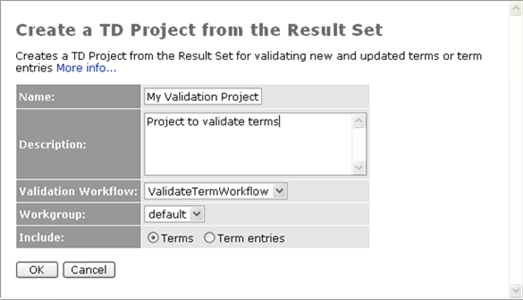
    The TD project creation dialog appears:
     
     
    Figure 53: Create Project from Result Set page
  3. In the Create Project from Result Set page, fill in the project creation options. In the Include field, select either Terms or Term entries.
    • If you select Terms, WorldServer creates a project consisting of terms that have proposed changes.
    • If you select Term entries, WorldServer creates a project consisting of term entries that have proposed changes.
  4. Click OK.
Validating an Entry Change Proposal
An entry change proposal consists of a proposal comment and changes to one or more term entry attributes.
Note: For the Propose Entry Change and Edit Entry buttons to appear, you must have created term entry attributes by selecting Attributes in the Custom Component list on the Management > Administration > Customization page and selected TD Entry for the Applicable Object Type. In the example below, the user has created attributes for Definition and Department.
  1. Open the term-based workflow project containing tasks for the terms you need to validate, then open the term entry by clicking on a link to the term entry or any of its terms. Alternatively, you can access the term in ad hoc mode via Tools > Term Databases > Term Database: <TD> page, by clicking on the TD and then the term entry.
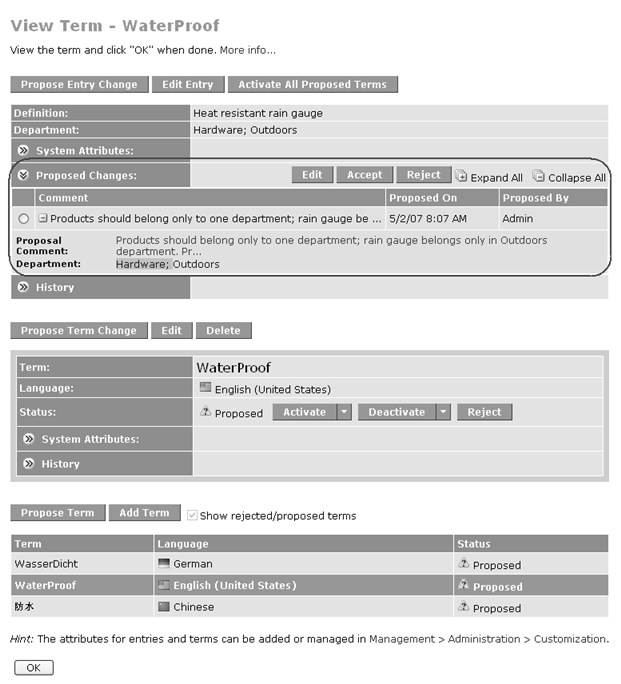
    Since this term entry has proposed changes, there is a Proposed Changes field in the entry section of the screen, initially collapsed.
  2. Expand the Proposed Changes field to display the proposed attribute changes. Expand the change proposal that you want to validate.
    Figure 54: A term entry with proposed changes
  3. Take the appropriate action to resolve this proposal, using the action buttons for the proposal.
    • Edit: – Opens the entry change proposal editor, so you can make amendments to the proposal. Add an explanation of your changes to the proposal comment. Editing a proposal does not fully resolve this proposal's fate: you still need to decide if you want to approve or reject this proposal.
    • Accept: – Makes the proposal take effect on the term entry. The attributes of the active term entry change to reflect the proposal and the proposal disappears from the list.
    • Reject: – Deletes the proposal.
Validating a Term Change Proposal
A term proposal consists of a proposal comment, a change to the term (if any), and changes to one or more term attributes.
  1. Open the term-based workflow project containing tasks for the terms you need to validate, then open the term by clicking on a link to the term. Alternatively, you can access the term in ad hoc mode via Tools > Term Databases > Term Database: <TD> page, by clicking on the TD and then the term.
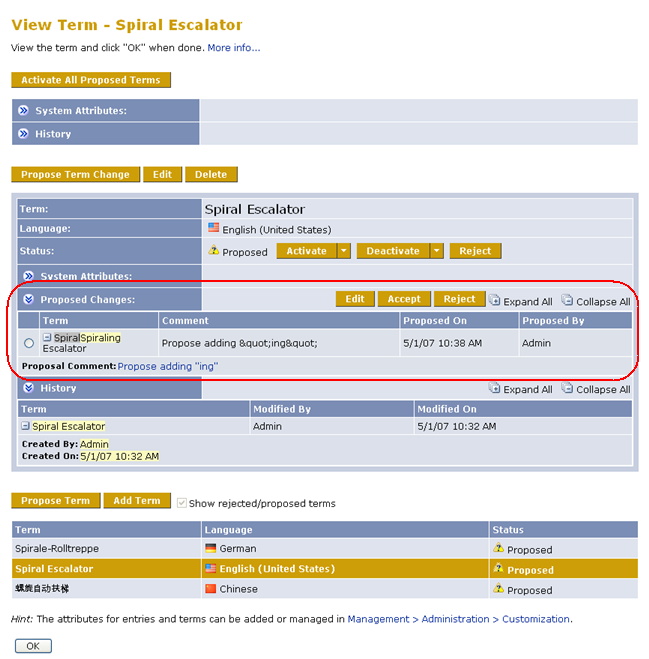
    The term viewer opens for that term. Since the term has proposed changes, there is a Proposed Changes field in the term section of the screen, initially collapsed.
  2. Expand the Proposed Changes field to display the proposed term changes. Expand the change proposal that you want to validate.
     
     
    Figure 55: A term with proposed changes
  3. Take the appropriate action to resolve this proposal, using the action buttons for the proposal.
    • Edit: – Opens the entry change proposal editor, so you can make amendments to the proposal. Add an explanation of your changes to the proposal comment. Editing a proposal does not fully resolve this proposal's fate: you still need to decide if you want to approve or reject this proposal.
    • Accept: – Makes the proposal take effect on the term entry. The attributes of the active term entry change to reflect the proposal and the proposal disappears from the list.
    • Reject: – Deletes the proposal.
Validating a New Term Proposal
Validating new term proposals is essentially the same as adding new terms. Whether you use Propose Entry, Propose Term, or Add Term, you end up with one or more terms with Proposed status. New terms introduced with the proposal mechanism will have a proposal comment attached to them. You can view that proposal comment by expanding the term's history field or by editing the term.
  1. Navigate to a term with Proposed status.
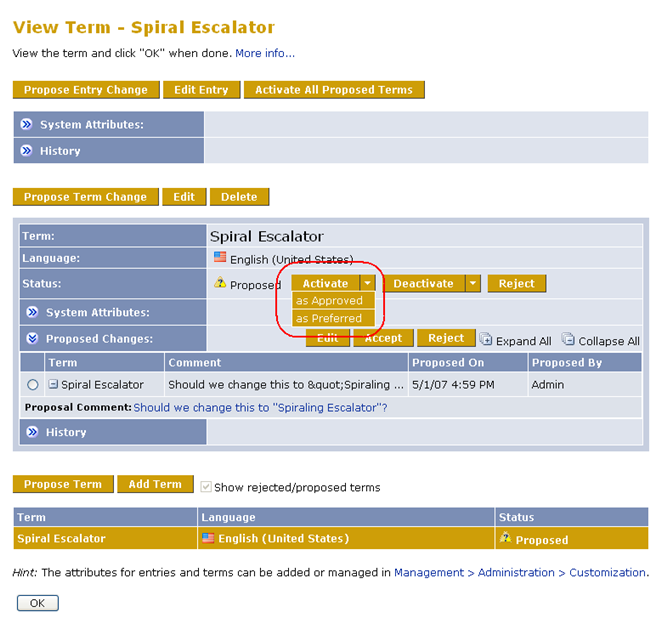
    The View Term page displays the appropriate controls for managing the term's status. If an administrative status was proposed, it appears in parenthesis next to the Proposed status label.
    Figure 56: Term with proposed status
  2. Select the desired status for the term.
    The appropriate processing and administrative status is set for the term. The proposed administrative status is taken into account if it is compatible. For example, if the proposed administrative status is Superseded and you click Deactivate, that will be the new administrative status. But if you had clicked Activate, the administrative status would be Approved. Of course, you can also select an administrative status using the drop-down menu.
Parent Topic
Working with Terminology Databases