WorldServer stores previous versions of a segment translation, making
them available to the reviewer and translator. The history entries
store relevant data from the segment, including previous translations,
status, and comments. This makes it easy for users to see exactly
who created the most recent translation and how it differed from previous
translations.
A history entry is created when a segment is changed and then saved.
In the Browser Workbench, “saving” means hitting the Save button, not the
autosave feature. For desktop translation tools, “saving” means uploading
the asset to WorldServer.
The history entry may or may not be created when a segment saved
based on the following rules:
-
If the current user and task step IDs are the same as the user and task step IDs recorded for the last history entry then a new history entry is not created. For ad hoc mode, only user IDs are compared since there is no task step ID. This rule prevents history entries from being created on each segment save and making segment history unusable.
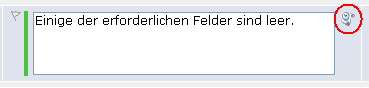
You can view the history for a segment by clicking an icon to the
right of the target segment. The link is shown only if there is history
available for this segment:
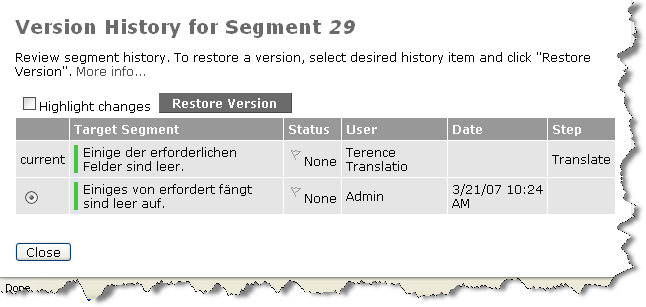
You can review the history and roll back to any previous history
entry by selecting an entry and pressing the Restore Version button.
Selecting this button modifies the segment to reflect the selected
entry; however it does not save the change back to the asset. The
change will only be saved when you click the Save button in the
Browser Workbench.
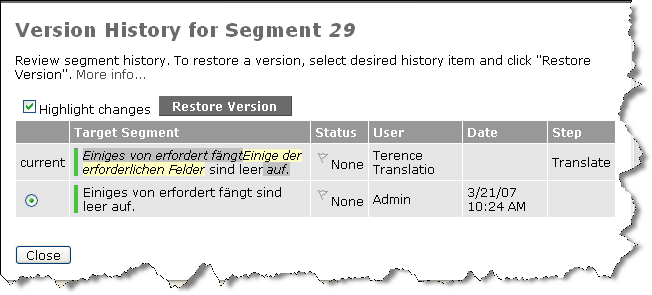
The most recent version displays differences from the previous one.
Here, the "current" version has added the words in yellow and removed
those in gray.
History entries follow the same rules as other segment changes as
far as the Browser Workbench autosave feature is concerned. That is,
history entries are automatically created in the cache when an autosave
is performed. However, as with other changes to a segment, the history
entries are not made permanent until you manually perform a Save on the asset.
This means that if you make some changes that cause history entries
to be created and then close the browser, the history entries are
stored in the autosave buffer (presuming the autosave interval was
reached before you closed the browser). If you reopen the Browser
Workbench, WorldServer asks if you want to continue with your previous
work or discard the work. If you continue with your previous work,
your newly created history entries are available again. If you discard
your previous work, your newly created history entries are discarded
as well.
When you enable Show Segment Details, by checking the box for it
in the Browser Workbench toolbar, a link appears for all segments
that have history, letting you display the previous version of the
segment. See Show Segment Details.