Click File > Open >  Translate Single Document. The Open Document dialog box is displayed.
Select MyDocument.doc and click Open. The Open Document dialog box is displayed.
Starter Edition
This topic describes an example of how to how to open a single file for translation using the Translate Single Document command in Starter.
For example, assume you have a document called MyDocument.doc that you want to translate from English to German. You also have a translation memory called MyTM.sdltm and a termbase called MyTermbase.sdltb.
Click File > Open > Translate Single Document. The Open Document dialog box is displayed.
Select MyDocument.doc and click Open. The Open Document dialog box is displayed.
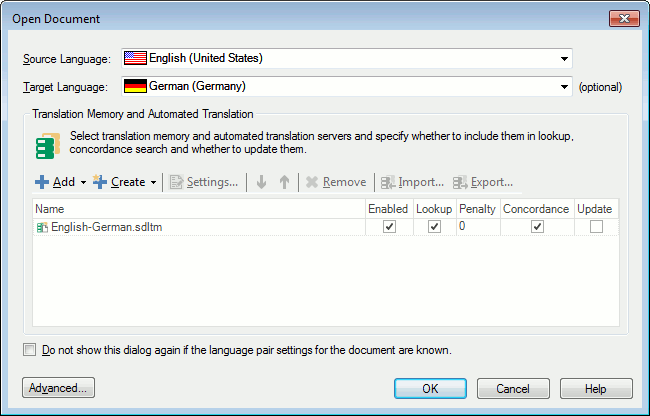 |
Select English (United States) as the Source Language and German (Germany) as the Target Language from the drop-down lists.
Select your translation memory:
Click Add and select File-based Translation Memory from the drop-down list. The Open File-based Translation Memory dialog box is displayed.
Select MyTM.sdltm and click Open. The translation memory is added to the list.
Select your termbase:
Click the Advanced button to display the Project Template Settings dialog box.
Select Language Pairs > All Language Pairs > Termbases from the navigation tree. The Termbases page is displayed.
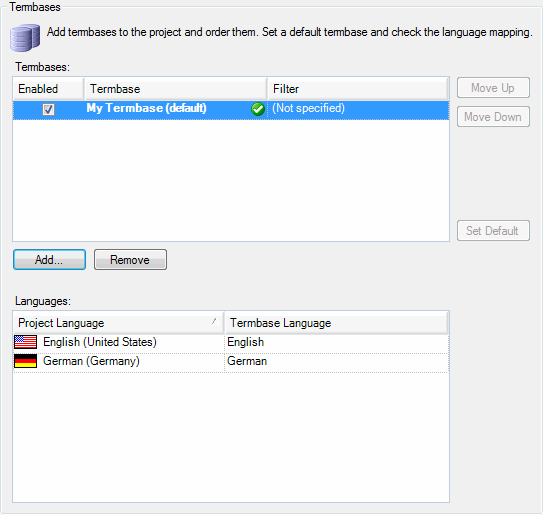 |
Click Add. The Select Termbases dialog box is displayed.
Click Browse. The Open Termbase dialog box is displayed.
Select My Termbase.sdltb and click Open.
Click OK to close the Select Termbases dialog box. The termbase is added to the list.
In the Open Document dialog box, click OK. The translatable content of the source language document is identified, segmented and placed in an *.sdlxliff file. The file is opened in the Editor window for translating.
A project is automatically created for you. Use the Project Settings dialog box to change the translation memory and termbase selections and to specify other settings.
|
NOTE |
The options that you define when opening a document for the first time for that language pair, become the default options for this language pair. The settings are displayed in the Options dialog box and are used next time you open a document. |