View Tab - Editor View
The View tab contains commands which enable you to navigate to other views and change the SDL Trados Studio interface.
The following table describes all the default groups and commands that are displayed on the View tab in the Editor view:
Command |
Description |
Group |
|||
Switch View |
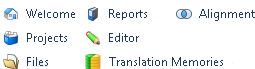
Click on one of the views to switch to it.
|
Navigation |
|||
User Interface Language |
Click this to change the language in which you want the Studio screens to be displayed. |
User Interface |
|||
Color Scheme |
Click this to change the color of Studio. You can choose from:
|
||||
Refresh View |
Click this to update the information in the view. Shortcut command: F5 |
||||
Full Screen |
Click this to maximize the application window. F11 switches full screen on and off. |
||||
Reset Window Layout |
Click this to reset the layout of the current view to its default settings. When you reset the alternative translation layout, this option restores the layout's default settings and also switches Studio back to the standard translation layout. |
||||
Translation Results |
Click this to view the results of translation memory lookups for the current segment. The Translation Results window is displayed. Alternatively, click the Translation Results tab. |
Information |
|||
Concordance Search |
Click this to view results of concordance searches. The Concordance Search window is displayed. Alternatively, click the Concordance Search tab. Only available in the Editor view.
|
||||
Comments |
Click this to view, edit and delete comments. The Comments window is displayed. Alternatively, click the Comments window name tab. Only available in the Editor view. |
||||
Messages |
Click this to view SDL Trados Studio messages concerning your documents. The Messages window is displayed. Alternatively, click the Messages window name tab. Only available in the Editor view. |
||||
Term Recognition |
Click this to view the results of the termbase for the current source segment. The Term Recognition window is displayed. |
||||
Termbase Search |
Click this to view to manually search for terms in the SDL MultiTerm termbase. The Termbase Search window is displayed. Alternatively, click the Termbase Search tab. |
||||
Termbase Viewer
|
Click this to display the Termbase Viewer window. The terms from the default termbase are listed here in alphabetical order. |
||||
Preview
|
Click this to view translation origin information for the selected project, for selected documents, or for the active document. The Analysis Statistics window is displayed. Alternatively, click the Analysis Statistics tab. |
||||
Confirmation Statistics |
Click this to view segment status information for the selected project, for selected documents, or for the active document. The Confirmation Statistics window is displayed. Alternatively, click the Confirmation Statistics tab. |
||||
Auto-scroll Source Documents |
Click this to see an overview of the batch tasks and the manual tasks that have or need to be completed for the project. You can see when each task began, who created it and who it was assigned to. The Task History window is displayed. |
Actions |
|||
Scroll source to target selection
|
Click this option to align source language segments with their target language versions. Segments become misaligned when you scroll the source and target segments separately. See Auto-scroll Source Document menu command. Only available in the Editor view. |
||||
Alternative Translation Layout |
In the Translation configuration, select this to switch from the standard translation layout to the alternative translation layout. By default, this rearranges the Editor View windows to place the Editor window at the top of the screen and the Translation Memory and Terminology windows at the bottom. You can personalize the alternative layout by moving the windows around and you can return to its default settings at any time, by choosing the Reset Window Layout option. This option restores the layout's default settings and also switches Studio back to the standard translation layout. |
||||
|
|
Tags are usually shown with some text on them, to make it easier to understand what they represent. You can choose whether tag text is displayed fully, partially or not at all. By default, tag text is only partially displayed: recognized formatting tags are hidden when inserted, but text is displayed in the format specified by the tags. |
||||
No Tag Text
|
Tag are
displayed without any descriptive text:
|
Options | |||
Partial Tag Text
|
Tags are
displayed with partial text: |
||||
Full Tag Text
|
Tags are
displayed with full text: |
||||
Tag Id |
Tags are displayed with tag IDs only: Every tag in the source document has a unique tag Id. |
||||
Toggle formatting tag display |
Click this to show/hide the formatting tags. For more information, see Show/Hide Recognized Formatting Tags. |
||||
Adapt Font Sizes |
Click this to use your custom font size for viewing the text in the Editor. When this button is highlighted, Studio displays the text in the size that you specified by using the Increase and the Decrease buttons or by adjusting the font settings the Font Adaptation page of the Options dialog box. Click the Adapt Font Sizes twice to deselect it and return to the default font size.
|
Font Adaptation | |||
Increase |
Click this to display the text in the Editor one size larger than the currently selected size.
|
||||
Decrease |
Click this to make the text in the Editor one size smaller than the currently selected size.
|
||||
Font Adaptation Dialog Box Launcher |
Click this to open the Options dialog box on the Font Adaptation page where you can customize the way Studio displays the text in the Editor |
||||








Topic: Published: November 10, 2014