The File Menu
The File menu is the first tab on the ribbon and is available in all views. Whereas all the other tabs contain controls for working with the content of the file, the File menu stores commands for working with files and projects and for changing Studio settings.
The File menu includes:
- basic options for working with files, projects and translation memories
- access to the Studio Options and Studio Setup parameters, which control how different areas of SDL Trados Studio look and function
access to preparing FrameMaker 7 and QuickSilver files using S-Tagger
The screenshot below shows the File menu on the ribbon interface:
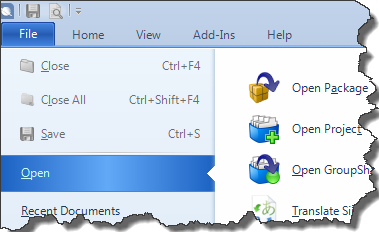
The following table describes all the commands that are displayed on the File tab in any view:
Command |
Description |
||
Close
|
Click this to close the active document. | ||
Close All |
Click this to close all open documents. |
||
Save |
Click this to save the active document. The document is saved as a *.sdlxliff file in the same folder as the source language document. If the active document was opened from an *.sdlxliff file, saving the document replaces that file. The Save File NameStudio saves the file with a name constructed as follows: <The original file name (with extension)>_<name of source language>_<name of target language>.sdlxliff For example, a source document named Sample.doc, being translated from English (US) to German (Germany) is saved as: Sample.doc_en-us_de-de.sdlxliff |
||
|
Select this to generate a translated file from the target segments in the active document. This option is only available if you have a document open in the Editor view. This saves the target language segments to a document of the same type as the source language document. You specify where you want the file to be saved. You can choose the encoding to be applied to the saved document. The selected encoding settings become the default encoding for subsequent Save Target As operations for the file. |
||
Open |
Option |
Click this to open a project package or return package and display the Open Package wizard. If the project that this package is associated with already exists in your installation of SDL Trados Studio, that project becomes the active project. If the project that this package is associated with does not already exist in your installation of Studio, the project is created and that project becomes the active project. Click here for more information. |
|
Open Package
|
|||
Open Project |
Click this to open a project and set the project to be the active project. | ||
Open GroupShare Project |
Click this to open a project which has been uploaded to the GroupShare Project Server. Click here for more information about Working with GroupShare Projects. | ||
Translate Single Document |
Select this to quickly open a single document and start a new translation. Starting a translation using this method bypasses all of the settings you select when you start a new translation with the New Project wizard, for example, selecting processing setting for pre-translation. These settings can be specified after the file is opened. The Translate Single Document command can also be used to open an existing translation file, an *.sdlxliff file. Shortcut command: Ctrl+Shift+O |
||
Open Translation Memory |
Click this to open an existing translation memory. The translation memory is added to the list of translation memories in the navigation pane, and the contents of the translation memory are displayed in the TM side-by-side editor window. The translation memory becomes the active translation memory. |
||
Open Server-based Translation Memory |
Click this to open an existing server-based translation memory using the Open Server-based Translation Memory wizard. The translation memory is added to the list of translation memories in the navigation pane, and the contents of the translation memory are displayed in the TM side-by-side editor window. The translation memory becomes the active translation memory. |
||
Open Language Resource Template |
Click this to open an existing language resource template. Click here to read more about language resource templates. | ||
Open Alignment |
Click this to open an alignment result file (*.sdlalign file) for review in the Alignment view. Studio generates *.sdlalign files when you align single or multiple files and you choose to save the alignment result file for later review. |
||
New |
New Project |
Click this to create a new translation project and prepare source language documents for translation. Shortcut command: Ctrl+N Click here for more information. |
|
New Translation Memory |
Click this to create a new translation memory. The opening page of the New Translation Memory wizard is displayed. |
||
New Server-based Translation Memory |
Click this to create a translation memory on a server. The opening page of the New Server-based Translation Memory wizard is displayed. |
||
New Language Resource Template |
Click this to create a new language resource template. The New Language Resource Template dialog box is displayed. |
||
Advanced Save |
Save All |
Click this to save all currently open documents. |
|
Save Copy As |
Click this to save a copy of the active document to a specified path other than the location to which it is already saved. When you subsequently Save the document, it will be saved to this path. |
||
Save Source As |
Click this to save the source content of the active document in its original format. You can choose the encoding to be applied to the saved document. This is useful if you received an *.sdlxliff file for translation and would like to see what the source language document looked like. If you have made edits to the source in the Editor, you can also use this command to update the original document with the corrections. |
||
Print & View |
|
Click this to preview the active *.sdlxliff document as HTML in your web browser. Previewing the *.xliff document as HTML allows you to clearly see the work you have completed. You can select File > Print in the preview from the web browser's menu bar. |
|
|
|
External previewing opens a document in the application in which it was originally created or an associated application. It allows you to view a snapshot of the generated version of the document being translated in Studio.
Click this to preview the active document. Select from the following options:
|
||
Setup |
Servers |
Click this to add a server, or edit the details of an existing server. The Servers dialog box is displayed. |
|
Project Templates |
Click this to manage project templates. The Project Templates dialog box is displayed. This allows you to add, edit and remove project templates, and to specify the default project template. |
||
Task Sequences |
Click this to manage task sequences. Task sequences are a series of steps that are performed on the project files. The Task Sequences dialog box is displayed. This allows you to edit, create, and remove task sequences |
||
Manual Tasks |
Click this to create a manual task to be assigned to a person to complete. The Manual Tasks dialog box is displayed. An example of a manual task is reviewing a document. (The task is performed by a person.) |
||
Users |
Click this to maintain a list of users with whom you share packages. The list includes their email addresses. The Users dialog box is displayed. |
||
Customers |
Click this to change the customer details The Customers dialog box is displayed. Use this to edit, add and remove customer details. For more information about Customers, see About Customers. |
||
Manage User Profiles |
Click this to do any of the following:
The Manage User Profiles dialog box is displayed. The user profiles store settings about the way Studio looks and functions. You can have a number of profiles, each with different settings, and switch between them. |
||
Legacy DTP Formats |
|
Click this to open SDL Trados S-Tagger for FrameMaker. This application facilitates the translation of FrameMaker files. It allows you to convert FrameMaker and FrameMaker+SGML files that have been saved as MIF to a tagged text format, STF. STF files contain only the text for translation along with brief descriptive tags which represent essential formatting information. Files can then be converted to TradosTag format (Trados 2007), which can be translated in Studio. For more information, see the help installed with S-Tagger for FrameMaker. |
|
Prepare QuickSilver Files |
Click this to open SDL Trados S-Tagger for Interleaf. This application converts Interleaf files that have been saved as IASCII to a tagged text format, STF, where only the text for translation along with brief descriptive tags which represent essential formatting information is presented to the translator. Files can then be converted to TradosTag format (Trados 2007), which can be translated in Studio. For more information, see the help installed with S-Tagger for QuickSilver. |
||
Language Cloud
|
Select this to access your SDL Language Cloud account information and manage your subscription to Language Cloud machine translation (MT) engines. These are SDL machine translation engines trained using content specific to each domain and can generate smarter automated translation results. You can customize your engines further by uploading your own terminology to get translation results that require less post-editing. Use your SDL My Account credentials to create an SDL Language Cloud account and log in. |
||
View Log File |
Select this to display the application log file. The log file contains a list of actions performed by the application and the status of the actions. The log file is stored here: C:\Documents and settings\your username\Local Settings\Application data\SDL International\SDL Trados Studio\numbered folder |
||
Options |
Select this to view and customize the settings that control how Studio looks and operates and to define your default translation settings. The Options dialog box is displayed. |
||
|
Click this to close Studio. Documents that are open will be automatically opened again when you restart Studio. |
||
.png)


 Exit
ExitUse the Keyboard to Work with the Ribbon
Topic: Published: November 10, 2014