

| Creating a New Project |
In this chapter you will learn how to properly set up a project for developing a bilingual file type plug-in.
 Create the Project
After launching Visual Studio 2010 choose to create a new SDL Trados Studio 2017 Plug-in Project, and give it an appropriate name, e.g. Sdl.Sdk.FileTypeSupport.Samples.Bil. The instructions for creating a SDL Trados Studio 2017 Plug-in Project are described in the Creating a New Project and Build the File Type Plug-in topics.
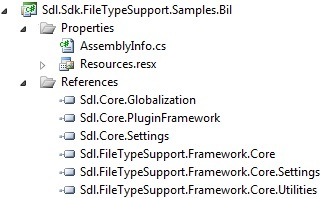
Add the Required ReferencesNext add the references from the SDL File Type Support Framework APIs. These are contained in the following assemblies:
- Sdl.FileTypeSupport.Framework.Core.dll: This is the main reference to the SDL File Type Support Framework API
- Sdl.FileTypeSupport.Framework.Core.Settings.dll
- Sdl.FileTypeSupport.Framework.Core.Utilities.dll
- Sdl.Core.Globalization.dll
- Sdl.Core.PluginFramework.dll
- Sdl.Core.Settings.dll
By default you find these files in the SDL Trados Studio 2017 installation folder, usually C:\Program Files\SDL\SDL Trados Studio\Studio5. The Copy Local property for these references should be set to True.
Remember to generate a key to sign the assembly. It is also recommended that you set SDLTradosStudio.exe as the external application for debugging purposes.
Add the Required ResourcesAdd a resources file (Resources.resx) to the project's properties. We will use this resources file later for storing information text on the file type plug-in that will be exposed in the user interface of SDL Trados Studio 2017.
Add an icon to the project. You will find a suitable icon file (Bil.ico) in the folder Sdl.Sdk.FileTypeSupport.Samples.Bil of the SDK sample projects folder. Set the Build Action property for the icon file to Embedded Resource. The icon that you add to the project will be the one that users will later see in the Options dialog box of SDL Trados Studio 2017.
CommunityComments