

| Modifying the File Type Component Builder |
This chapter outlines the quickest way to implement an internal static document preview function.
 Add the Static Preview Name to the Resources
To implement the static preview we first need to make a few additions to the File Type Component Builder. In the first step, define the preview name in the resources file. This is the name that will be shown later in the combo box of the preview window of SDL Trados Studio 2014. Add the following entries to the resources file, which are going to be referenced in the File Type Component Builder later:
 Add the Static Internal Preview Set Reference
In the next step add the following preview set method for the static internal preview into the File Type Component Builder file. Note that the method references the preview name that you previously defined in the resources file.
IPreviewSet internalStaticPreviewSet = previewFactory.CreatePreviewSet();
internalStaticPreviewSet.Id = new PreviewSetId("InternalStaticPreview");
internalStaticPreviewSet.Name = new LocalizableString(Resources.InternalStaticPreview_Name);

IControlPreviewType sourceControlPreviewType1 = previewFactory.CreatePreviewType<IControlPreviewType>() as IControlPreviewType;
if (sourceControlPreviewType1 != null)
{
    sourceControlPreviewType1.SourceGeneratorId = new GeneratorId("StaticPreview");
    sourceControlPreviewType1.SingleFilePreviewControlId = new PreviewControlId("InternalNavigablePreview");
    internalStaticPreviewSet.Source = sourceControlPreviewType1;
}

IControlPreviewType targetControlPreviewType1 = previewFactory.CreatePreviewType<IControlPreviewType>() as IControlPreviewType;
if (targetControlPreviewType1 != null)
{
    targetControlPreviewType1.TargetGeneratorId = new GeneratorId("StaticPreview");
    targetControlPreviewType1.SingleFilePreviewControlId = new PreviewControlId("InternalNavigablePreview");
    internalStaticPreviewSet.Target = targetControlPreviewType1;
}
previewFactory.GetPreviewSets(null).Add(internalStaticPreviewSet);
Define the Preview ControlFor an internal preview you require a control element that can display the document content. You could add your own custom preview control element. This is actually what we are going to do later, when we implement the dynamic real-time preview (see Adding a Preview UI Control). However, to keep things as simple as possible for now, we will leverage the built-in Web browser control that is integrated in SDL Trados Studio 2014. As we are dealing with a simple text format, we can easily use the built-in Web browser control to generate the preview output. To 'tell' the file type plug-in that it should leverage the built-in Web browser control, make an addition to the File Type Component Builder. You can add the new method just below the Notepad preview control, which you defined for the external preview functionality (see Implementing an External File Preview). Note that the id of the object corresponds to the name of the preview set that you added in the previous step, and must be preceded by a PreviewControl_ prefix to be properly recognized.
/// <summary>
/// Creates a new instance of the preview control with the specified name.
/// </summary>
/// <remarks>
/// <para>
/// Should only be called from the main thread, as controls must always be
/// instantiated on the same thread as the application message pump.
/// </para>
/// </remarks>
/// <param name="name">not used here</param>
/// <returns>not implemented</returns>
public virtual IAbstractPreviewControl BuildPreviewControl(string name)
{
    if (name == "PreviewControl_InternalStaticPreviewControl")
    {
        return new InternalPreviewController();
    }
    else if (name == "PreviewControl_InternalNavigablePreview")
    {
        return new InternalPreviewController();
    }
    else
    {
        return null;
    }
}
Define the Preview WriterNaturally, you need a writer component to fill the preview control element with content to display. You could, of course, use the file writer class, which you have already implemented in your file type plug-in and which you also leveraged for the external preview (see Implementing an External File Preview). However, if you did this, the output in the internal Web browser control would look as shown below:
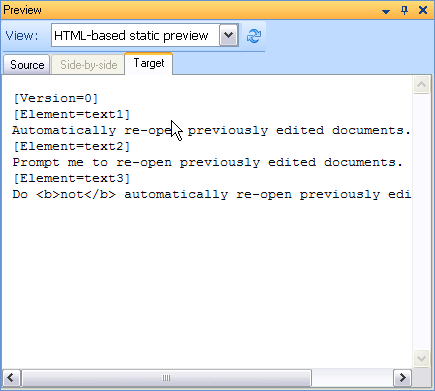
As you can see, if we re-used the existing file writer, the internal preview would not add much value to our file type plug-in. First, the inline tags are shown as normal text and no character formatting is applied in this preview. Also, the preview shows all non-translatable strings, which will usually not be very useful for this type of preview. We should therefore implement another writer component that generates a nicely layouted HTML output in the internal preview. This sound like a cosmetic issue, but the preview should be visually appealing to end users and ideally give them an idea of the document layout to provide additional value.
Before we actually implement our new preview writer component (see Implementing the Preview Writer), we add the method for this new component to the File Type Component Builder. You can make this addition below the object for the external preview writer (see chapter Implementing an External File Preview). In the next chapter you will learn how to implement the new preview file writer class, which generates the preview output.
/// <summary>
/// Gets a native or bilingual document generator of the type
/// defined for the specified name.
/// </summary>
/// <param name="name">Abstract generator name</param>
/// <returns>not generator for default preview</returns>
public virtual IAbstractGenerator BuildAbstractGenerator(string name)
{
    if (name == "Generator_DefaultPreview")
    {
        return FileTypeManager.BuildFileGenerator(FileTypeManager.BuildNativeGenerator(new SimpleTextWriter()));
    }
    if (name == "Generator_StaticPreview")
    {
        return FileTypeManager.BuildFileGenerator(FileTypeManager.BuildNativeGenerator(new SimpleTextWriter()));
    }
    if (name == "Generator_RealTimePreview")
    {
        return FileTypeManager.BuildFileGenerator(FileTypeManager.BuildNativeGenerator(new InternalPreviewWriter()));
    }

    return null;
}
See AlsoCommunityComments