

| Adding Context Information |
In this chapter you will learn how to extract helpful context information from a given BIL file.
 About Contexts
For the translators it is often useful to know whether a given segment occurs in a headline, paragraph, etc. Units in the BIL sample format may contain a type element, which indicates the context of a unit element, e.g.:
<type spec="Heading"/>
SDL Trados Studio 2014 can display such information in a column next to the target segments. In this chapter we want to enhance our parser to show the information from the type element in the editor of SDL Trados Studio 2014.
Below you see an example of how the context information can be displayed in the translation environment. Each context cell contains a display code, which is the abbreviated form of the full context, e.g. T for Topic. You may also assign different colors for each context type as a visual aid for the translator.
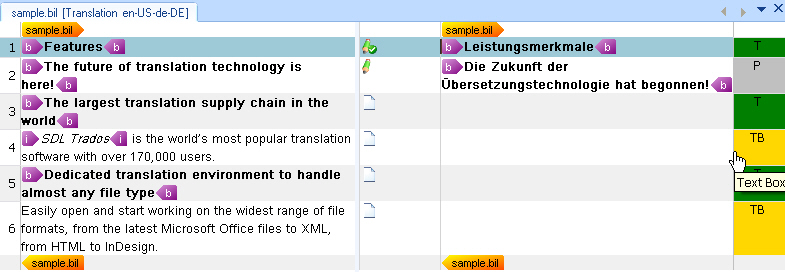
The API allows you to either create custom context information using, for example, the information from the BIL file, or you can draw from a collection of standard context types. The API offers various standard types to cover a large variety of possible elements that may occur in a document such as title, paragraph, text box, etc.
To keep things simple let us consider only three mapping scenarios. The table below lists the BIL type values, which should be mapped to the corresponding standard context types offered by the API:
| BIL Type | Standard Context Type |
|---|---|
| Heading | Topic |
| Box | Text Box |
For our implementation, let us assume the following: If a unit in the BIL file does not have a type element, then the standard context type paragraph should be used.
Apart from the type element content we can also use the context information to store the unique id of the units found in the BIL file. The unit element contains an id attribute, which stores the id value. This id should not be shown to the end user, as it is not relevant for the translation. However, it should be included somewhere in the intermediary (SDL XLIFF) file, so that the writer class (which we will implement later) can reference it when generating the target BIL file (see Adding the File Writer Class). Within the context properties (but not only there) you can include metadata, which is not visible to the user, but is stored physically in the intermediary (SDL XLIFF) file.
Note that adding metadata is not limited to contexts. You can apply metadata to various types of instances such as inline tags, structure tags, placeables, etc.
Extend the Helper Function for Creating Paragraph UnitsFirst, add the following to the CreateParagraphUnit() helper function:
// create paragraph unit context
string id = xmlUnit.SelectSingleNode("./@id").InnerText;
if(xmlUnit.SelectSingleNode("type/@spec")!=null)
{
    string spec = xmlUnit.SelectSingleNode("type/@spec").InnerText;

    paragraphUnit.Properties.Contexts=CreateContext(spec, id);
} else {
    paragraphUnit.Properties.Contexts = CreateContext("Paragraph", id);
}
Second, we determine the value of the id attribute of the current unit element, and pass it to the separate helper function.
The full CreateParagraphUnit() helper function should look as shown below:
// helper function for creating paragraph units
private IParagraphUnit CreateParagraphUnit(XmlNode xmlUnit)
{
    // create paragraph unit object
    IParagraphUnit paragraphUnit = ItemFactory.CreateParagraphUnit(LockTypeFlags.Unlocked);


    // create segment pair object
    ISegmentPairProperties segmentPairProperties = ItemFactory.CreateSegmentPairProperties();
    // assign the appropriate confirmation level to the segment pair
    segmentPairProperties.ConfirmationLevel=CreateConfirmationLevel(xmlUnit.Attributes["status"].Value);

    // add source segment to paragraph unit
    ISegment srcSegment = CreateSegment(xmlUnit.SelectSingleNode("source/seg"), segmentPairProperties);
    paragraphUnit.Source.Add(srcSegment);

    // add target segment to paragraph unit if available
    if(xmlUnit.SelectSingleNode("target/seg") != null)
    {
        ISegment trgSegment = CreateSegment(xmlUnit.SelectSingleNode("target/seg"), segmentPairProperties);
        paragraphUnit.Target.Add(trgSegment);
    }

    #region "context"
    // create paragraph unit context
    string id = xmlUnit.SelectSingleNode("./@id").InnerText;
    if(xmlUnit.SelectSingleNode("type/@spec")!=null)
    {
        string spec = xmlUnit.SelectSingleNode("type/@spec").InnerText;

        paragraphUnit.Properties.Contexts=CreateContext(spec, id);
    } else {
        paragraphUnit.Properties.Contexts = CreateContext("Paragraph", id);
    }
    #endregion

    #region "comments"
    // extract comment (if applicable)
    if(xmlUnit.SelectSingleNode("comment")!=null)
    {
        paragraphUnit.Properties.Comments = CreateComment(xmlUnit.SelectSingleNode("comment").InnerText);
    }
    #endregion

    return paragraphUnit;
}
Add the Helper Function to Create the Context PropertiesBefore you implement the new context helper function, add the System.Drawing library as a reference to your project. This facilitates the task of assigning different background colors to the various context types, which makes distinguishing the contexts easer for the end user.
Also, you need to add the following namespace to your class, which provides access to the standard context types that the API offers: Sdl.FileTypeSupport.Framework.Core.Utilities.NativeApi
This function uses the properties factory to create a context properties object as well as a context information object. By default, we assign the context type Paragraph value from the StandardContextTypes collection. Also, we set the ContextPurpose to Information. This means that the context information is purely for information, and not for TM matching purposes. The function than uses a switch statement to map the value from the spec attribute of the type element to the corresponding standard context type and assigns a background colour.
The second context info (contextID) that is added to the context properties object contains the unit id. Remember that this information is not supposed to be visible to the end user. That is why we add it through the MetaData property. In this case, the Add() method requires two string parameters: the key (i.e. the field name) and the actual value.
private IContextProperties CreateContext(string spec, string unitID)
{
    // context info for type information, e.g. heading, paragraph, etc.
    IContextProperties contextProperties = PropertiesFactory.CreateContextProperties();
    IContextInfo contextInfo = PropertiesFactory.CreateContextInfo(StandardContextTypes.Paragraph);
    contextInfo.Purpose = ContextPurpose.Information;

    // add unit id as metadata
    IContextInfo contextId = PropertiesFactory.CreateContextInfo("UnitId");
    contextId.SetMetaData("UnitID", unitID);

    switch (spec)
    {
        case "Heading":
            contextInfo = PropertiesFactory.CreateContextInfo(StandardContextTypes.Topic);
            contextInfo.DisplayColor = Color.Green;
            break;
        case "Box":
            contextInfo = PropertiesFactory.CreateContextInfo(StandardContextTypes.TextBox);
            contextInfo.DisplayColor = Color.Gold;
            break;
        case "Paragraph":
            contextInfo = PropertiesFactory.CreateContextInfo(StandardContextTypes.Paragraph);
            contextInfo.DisplayColor = Color.Silver;
            break;
        default:
            break;
    }

    contextProperties.Contexts.Add(contextInfo);
    contextProperties.Contexts.Add(contextId);

    return contextProperties;
}
CommunityComments