

| Adding the Main GUI |
This page describes how to set up the main application form that is used to enter search strings and display the search results.
 Add the Main Application Form
Apart from the main application form we will need other forms for selecting the TM and for configuring search settings. Therefore add a folder called GUI to your project that will contain all the application forms. Then add a form called frmLookup, which will be used to enter search strings and display results.
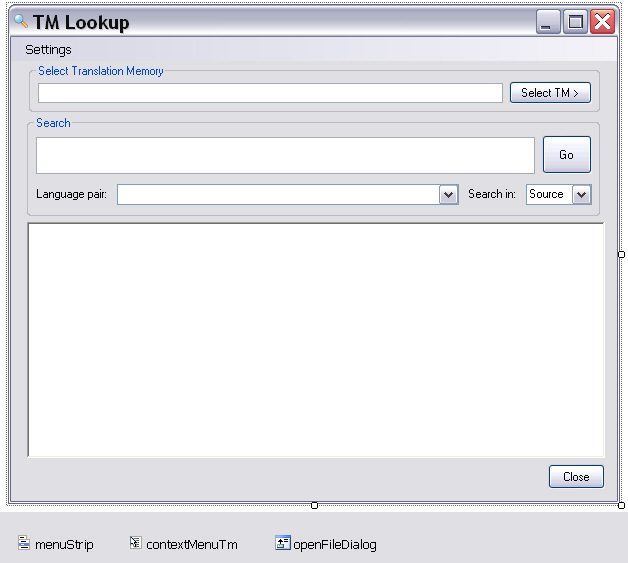
Add the following elements to your form:
- txtSearch: the text field into which the search strings are entered. Make sure to set the Multiline property to True.
- txtTmPath: contains the TM file name and path or the server URI and TM name, depending on whether the user has selected a file TM or a server TM. This text field should be disabled, i.e. read-only to prevent users from changing the value after the TM has been properly selected through the GUI. Set the Modifiers of this control to Public.
- btnSelectTm: button for selecting the TM to use for the search. Opens a context menu (see item below), which offers a choice between file and server TMs.
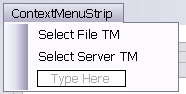
- contextMenuTm: a context menu that
is opened through the Select TM button. This menu features the options
Select File TM and Select Server TM
for selecting either type of translation memory.
- comboIndex: the combo box through which users can select whether the search should be done in the source or in the target language; the items collection needs to contain the values Source and Target, with the Text property being Source (i.e. Source should be the default value)
- btnSearch: the button that is used to trigger the concordance search
- richTextBox: a rich text control element that we will use to display the search results
- menuStrip: application Settings menu that allows users to fine-tune the search options
- btnClose: button element that closes the main window and exits the application
- comboLanguagePairs: the combo list element that contains the language directions available in the selected TM. Note that file-based TMs only offer a single language direction, whereas server TMs can have multiple language pairs. Set the Modifiers of this control to Public.
- openFileDialog: dialog box for selecting the file TM. Set the Filter property to Translation Memories (*.sdltm)|*.sdltm
Implement the GUI FunctionalityMenu Functions
Clicking the menu items should open the corresponding form, i.e. the form for configuring the search settings:
private void searchOptionsToolStripMenuItem_Click(object sender, EventArgs e)
{
    settings.Show();
}
Closing the Application
Clicking the Close button should exit the application:
private void btnClose_Click(object sender, EventArgs e)
{
    Application.Exit();
}
Selecting the File-based TM
When the corresponding command in the context menu is clicked, you raise the open file dialog, in which the file TM can be selected. The complete file name is entered into the main application form, as is the TM language direction:
private void selectFileTMToolStripMenuItem_Click(object sender, EventArgs e)
{
    // Raise open file dialog.
    this.openFileDialog.Title = "Select Translation Memory File";
    this.openFileDialog.Filter = "Translation memories (*.sdltm)|*.sdltm";

    // Check whether an *.sdltm file was selected
    if (this.openFileDialog.ShowDialog() == DialogResult.OK)
    {
        // Create a new connector object to connect to the file TM
        Connector fileConnect = new Connector();
        fileConnect.SelectFileTm(this.openFileDialog.FileName);
        this.txtTmPath.Text = this.openFileDialog.FileName;

        // File TMs have only one language direction, which is filled into the
        // language pair list.
        string srcLang = Connector.fileTm.LanguageDirection.SourceLanguage.DisplayName.ToString();
        string trgLang = Connector.fileTm.LanguageDirection.TargetLanguage.DisplayName.ToString();

        this.comboLanguagePairs.Items.Clear();
        this.comboLanguagePairs.Text =  srcLang + " -> " + trgLang;
    }
}
Raising the Form for Server TM Selection
Selecting a server TM requires users to enter more than just a file name and path. This is why the second command in the context menu raises a separate form, in which the server URI and user credentials are entered:
private void selectServerTMToolStripMenuItem_Click(object sender, EventArgs e)
{
    frmSelectTM selectTm = new frmSelectTM();
    selectTm.Show();
}
Initializing the Default Search Settings
When the application is started, the form for configuring the search settings should get the default settings, which - in our implementation - are identical to the settings used by SDL Trados Studio 2017, i.e. 70% as the minimum fuzzy match value and 30 as the maximum number of results that a concordance search should return. Note that both of these settings can have an impact on the search speed.
// Initialize form with default search settings.
public frmLookup()
{
    InitializeComponent();
    frmSettings.maxHits = 30;
    frmSettings.minFuzzy = 70;
}
Executing the Search
By clicking the Search button the corresponding function in the (yet to be implemented) Search class should be triggered. This function requires the search string (entered into the txtSearch text field, the source/target flag (as set through the comboIndex list) as parameters. In addition it requires the language pair index, which is provided by the comboLanguagePairs control element, as server TMs can have multiple language pairs:
private void btnSearch_Click(object sender, EventArgs e)
{
    try
    {
        #region "SearchObject"
        Search search = new Search();
        #endregion

        #region "SourceOrTarget"
        // Determine whether to do the concordance search in the
        // source or in the target language;
        bool searchTarget;
        if (this.comboIndex.Text == "Target")
            searchTarget = true;
        else
            searchTarget = false;
        #endregion

        #region "FillHitlist"
        // Fill the search result into the rich text box.
        this.lblHitCount.Text = search.DoConcordanceSearch(this.txtSearch.Text, searchTarget,
            comboLanguagePairs.SelectedIndex);
        #endregion
    }
    catch(Exception ex)
    {
        MessageBox.Show("No TM selected." + ex.Message);
    }
}
See AlsoOther Resources
CommunityComments