

| Adding the Search Settings Form |
This page shows how to implement the user interface for configuring the search settings. The sample application should allow users to set the maximum number of search results as well as the minimum fuzziness value.
 Add the Form Control Elements
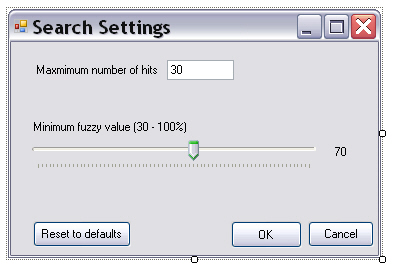
The form configuring the search options needs to have the following control elements:
- txtMaxHits: text box in which the maximum number of hits can be entered; set the MaxLength property to 2, so that only values up to 99 can be entered (note that in this simplified application we will not implement any functionality that checks whether the input in this field is numerical)
- trackFuzzy: slider to set the fuzziness value anywhere between 30 and 100; the minimum value should therefore be 30, the maximum 100, the default value 70
- lblFuzzyValue: label that shows the fuzziness value set by the slider
- btnDefaults: restores the settings back to their default values
- btnOK: closes the form and applies the settings changes
- btnCancel: closes the form without applying settings changes
Implement the GUI FunctionalitySetting the Fuzziness Value
Through the slider users can set the minimum fuzziness value between 30 and 100. When changing the slider position, the value should be updated in the label element:
private void trackFuzzy_Scroll(object sender, EventArgs e)
{
    this.lblFuzzyValue.Text = this.trackFuzzy.Value.ToString();
}
Resetting to Default Values
The default settings should be restored as follows by clicking the corresponding button:
// Reset the control elements to the corresponding default values.
private void btnDefaults_Click(object sender, EventArgs e)
{
    this.trackFuzzy.Value = 70;
    this.lblFuzzyValue.Text = "70";
    this.txtMaxHits.Text = "30";
}
Applying the Settings
Add two public properties that represent the search settings:
// Property for setting the minimum fuzzy match value
// that should be used during the search.
public static int minFuzzy
{
    get;
    set;
}
// Property for setting the maximum amount of hits to return
// from the TM.
public static int maxHits
{
    get;
    set;
}
// Apply the setting values from the form.
private void btnOK_Click(object sender, EventArgs e)
{
    maxHits = Convert.ToInt32(this.txtMaxHits.Text.ToString());
    minFuzzy = this.trackFuzzy.Value;

    this.Hide();
}
Cancelling
Clicking the Cancel button should hide the form without applying the settings.
private void btnCancel_Click(object sender, EventArgs e)
{
    this.Hide();
}
See AlsoCommunityComments