

| Doing Translation Memory Lookups |
The most common operation performed on a translation memory involves looking up whole segments or searching single words/expressions through a concordance search. This chapter will show to you how to perform TM lookups programmatically. The aim is to develop a simplified application that searches a selected TM for a particular string. The application should be configurable to perform e.g. a normal segment search or a concordance search:
 Add a New Class
Add a new class called TmLookup to your project. Then implement a function called SearchForText, which takes the TM file name and path, the search string and the search mode (i.e. segment lookup or concordance search) as parameters. This function can be called as shown in the example below:
TMLookup search = new TMLookup();
search.SearchForText(_translationMemoryFilePath, "To run the Spelling Checker:", SearchMode.NormalSearch);
Execute the Search and Configure the Search SettingsAfter opening the TM the search is executed by applying the SearchText method to the language direction of the selected TM, thereby creating a results object, which holds the search results (if any).
FileBasedTranslationMemory tm = new FileBasedTranslationMemory(tmPath);
SearchResults results = tm.LanguageDirection.SearchText(this.GetSearchSettings(mode), searchText);
private SearchSettings GetSearchSettings(SearchMode mode)
{
    SearchSettings settings = new SearchSettings();

    settings.MaxResults = 5;
    settings.MinScore = 70;
    settings.Mode = mode;
    settings.FindPenalty(PenaltyType.FilterPenalty);

    return settings;
}
SDL Trados Studio 2015 uses a default maximum results count of 5. This means that even if the TM contains, for example, 10 potential matches, only the first 5 (best) matches will be returned. Note that setting the minimum fuzziness score and the maximum number of results can have an impact on search performance. The more results potentially need to be returned, and the deeper the search needs to go, the longer the search might take. It usually takes more time to retrieve a low fuzzy match (e.g. 60%) then to retrieve an exact match or a high fuzzy match.
Another parameter that we pass in this implementation is the search mode, which can be configured, for example, to execute a concordance search, i.e. the search type that looks up all segments that contain a particular string. Note that the search mode can be set to do a concordance search in the source or target segment, provided that during TM creation (Creating a File-based Translation Memory) the database has been configured to index the target segments. You can also set the mode to perform a segment lookup using the values of the SearchMode enumerator. By default, SDL Trados Studio 2015 performs a NormalSearch search. This means that fuzzy matches are only retrieved if no exact or context match has been found. FullSearch also yields fuzzy matches even if an exact match has been found. Usually, the exact matches are the ones that translators will insert into the target document. However, in rare instances, a fuzzy match might prove more useful than the exact match. Note that retrieving fuzzy matches even if exact matches have been found can also have an impact on the TM lookup performance.
Run a Filtered SearchSDL Trados Studio 2015 allows you to define one or several filter criteria that can be applied during a TM search. Example: You want to focus on TUs that are associated with the customer Microsoft, i.e. where the Customer field contains the value Microsoft. TUs that do not match this filter can still be found, however, a penalty is applied to them. Example: A TU matches a particular segment exactly, i.e. it has the score 100%. However, as it does not match the specified filter, a penalty of 1% is applied, which reduces the score to 99%. This is done to draw the translator's attention to the fact that the suggested translation might not fit the current context, as it was not created for the specified customer.
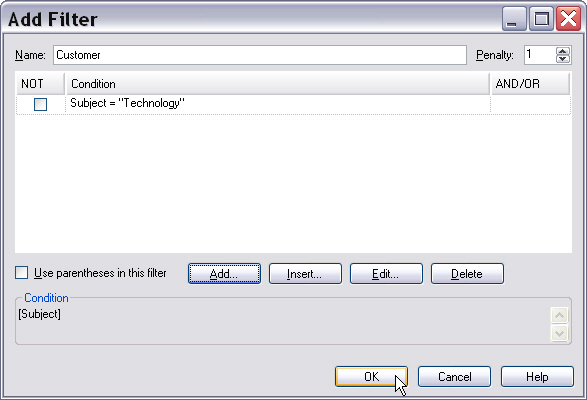
The screenshot below shows an example of a filter that applies a penalty of 1% to any TUs that do not have with the Subject field value Technology:
In order to apply a filter to your search, expand the helper function GetSearchSettings by adding the two following lines:
Filter filter = new Filter(this.GetFilter(), "Microsoft", 1);
settings.AddFilter(filter);
Now you add the helper function that returns the FilterExpression object. As mentioned above, you would like to focus on TUs where the Customer field is equal to the value Microsoft. Note that in this example, Customer is a picklist field that allows multiple values. The following sample code shows you how to set the field name and value and how to build a filter criterion:
PicklistItem fieldName = new PicklistItem("Customer");
MultiplePicklistFieldValue fieldValue = new MultiplePicklistFieldValue("Microsoft");
fieldValue.Add(fieldName);
AtomicExpression filter = new AtomicExpression(fieldValue, AtomicExpression.Operator.Equal);
return filter;
private FilterExpression GetFilter()
{
    #region "SimpleCriterion"
    PicklistItem fieldName = new PicklistItem("Customer");
    MultiplePicklistFieldValue fieldValue = new MultiplePicklistFieldValue("Microsoft");
    fieldValue.Add(fieldName);
    #endregion

    #region "SimpleFilter"
    AtomicExpression filter = new AtomicExpression(fieldValue, AtomicExpression.Operator.Equal);
    return filter;
    #endregion
}
 Note Note |
|---|
Filter names must not contain spaces. |
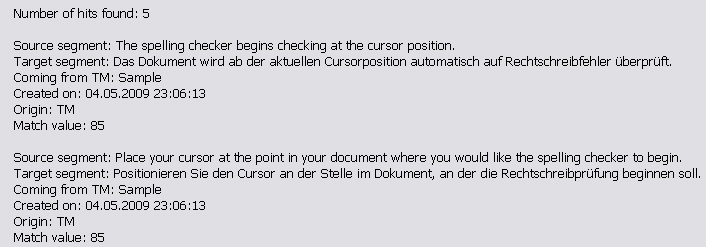
Output the Search ResultsAfter executing the search, you will want to output the result (if any). In our simple implementation we will use a message box, which should include the following:
- The hit count.
- The source/target segments of the matching TUs that were found in the TM
- The match score, so that users can ascertain at a glance whether the match is of higher or lower quality.
- The origin - this property will indicate TM in our example, as we are searching in a TM. Translators might also consult other translation providers such as online machine translation engines. In this case, the origin will not be a TM.
- The TU creation date, which helps users ascertain how up to date a particular TU is.
string hitList = "Number of hits found: " + results.Count.ToString() + "\n\n";

foreach (SearchResult result in results)
{
    hitList += "Source segment: " + result.MemoryTranslationUnit.SourceSegment.ToPlain() + "\n";
    hitList += "Target segment: " + result.MemoryTranslationUnit.TargetSegment.ToPlain() + "\n";
    hitList += "Created on: " + result.MemoryTranslationUnit.SystemFields.CreationDate.ToString() + "\n";
    hitList += "Origin: " + result.MemoryTranslationUnit.Origin.ToString() + "\n";
    hitList += "Match value: " + result.ScoringResult.Match.ToString() + "\n\n";
}

MessageBox.Show(hitList);
Search for Segment or TUIn the example above we provided a 'normal' string as search parameter when applying the SearchText method. Alternatively, you can also search for a segment or TU object by using SearchSegment or SearchTranslationUnit. The following sample function outlines how to create and use a Segment object to carry out a TM search:
public void SearchForSegment(string tmPath)
{
    FileBasedTranslationMemory tm = new FileBasedTranslationMemory(tmPath);
    SearchSettings settings = new SearchSettings();
    settings.MaxResults = 5;

    Segment srcSegment = new Segment(tm.LanguageDirection.SourceLanguage);
    srcSegment.Add("Configure the spelling checker as shown below:");
    SearchResults results = tm.LanguageDirection.SearchSegment(settings, srcSegment);

    foreach (SearchResult result in results)
    {
        MessageBox.Show(result.TranslationProposal.TargetSegment.ToPlain());
    }
}
public void SearchForTu(string tmPath)
{
    FileBasedTranslationMemory tm = new FileBasedTranslationMemory(tmPath);
    SearchSettings settings = new SearchSettings();
    settings.MaxResults = 5;

    TranslationUnit tu = new TranslationUnit();
    tu.SourceSegment = new Segment(tm.LanguageDirection.SourceLanguage);
    tu.TargetSegment = new Segment(tm.LanguageDirection.TargetLanguage);

    tu.SourceSegment.Add("Configure the spelling checker as shown below:");
    tu.TargetSegment.Add("Konfigurieren Sie die Rechtschreibprüfung wie unten gezeigt:");

    SearchResults results = tm.LanguageDirection.SearchTranslationUnit(settings, tu);

    foreach (SearchResult result in results)
    {
        MessageBox.Show(result.TranslationProposal.TargetSegment.ToPlain());
    }
}
Putting it All TogetherThe complete class should now look as shown below:
namespace Sdl.SDK.LanguagePlatform.Samples.TmAutomation
{
    using System.Windows.Forms;
    using Sdl.LanguagePlatform.Core;
    using Sdl.LanguagePlatform.TranslationMemory;
    using Sdl.LanguagePlatform.TranslationMemoryApi;

    public class TMLookup
    {
        #region "searchTU"
        public void SearchForText(string tmPath, string searchText, SearchMode mode)
        {
            #region "ExecuteSearch"
            FileBasedTranslationMemory tm = new FileBasedTranslationMemory(tmPath);
            SearchResults results = tm.LanguageDirection.SearchText(this.GetSearchSettings(mode), searchText);
            #endregion

            #region "histlist"
            string hitList = "Number of hits found: " + results.Count.ToString() + "\n\n";

            foreach (SearchResult result in results)
            {
                hitList += "Source segment: " + result.MemoryTranslationUnit.SourceSegment.ToPlain() + "\n";
                hitList += "Target segment: " + result.MemoryTranslationUnit.TargetSegment.ToPlain() + "\n";
                hitList += "Created on: " + result.MemoryTranslationUnit.SystemFields.CreationDate.ToString() + "\n";
                hitList += "Origin: " + result.MemoryTranslationUnit.Origin.ToString() + "\n";
                hitList += "Match value: " + result.ScoringResult.Match.ToString() + "\n\n";
            }

            MessageBox.Show(hitList);
            #endregion
        }
        #endregion

        #region "settings"
        private SearchSettings GetSearchSettings(SearchMode mode)
        {
            SearchSettings settings = new SearchSettings();

            settings.MaxResults = 5;
            settings.MinScore = 70;
            settings.Mode = mode;
            settings.FindPenalty(PenaltyType.FilterPenalty);

            return settings;
        }
        #endregion

        #region "SettingsWithFilter"
        private SearchSettings GetSearchSettingsWithFilter(SearchMode mode)
        {
            SearchSettings settings = new SearchSettings();

            settings.MaxResults = 5;
            settings.MinScore = 70;
            settings.Mode = mode;

            #region "SettingFilter"
            Filter filter = new Filter(this.GetFilter(), "Microsoft", 1);
            settings.AddFilter(filter);
            #endregion

            return settings;
        }
        #endregion

        #region "GetFilter"
        private FilterExpression GetFilter()
        {
            #region "SimpleCriterion"
            PicklistItem fieldName = new PicklistItem("Customer");
            MultiplePicklistFieldValue fieldValue = new MultiplePicklistFieldValue("Microsoft");
            fieldValue.Add(fieldName);
            #endregion

            #region "SimpleFilter"
            AtomicExpression filter = new AtomicExpression(fieldValue, AtomicExpression.Operator.Equal);
            return filter;
            #endregion
        }
        #endregion

        #region "SearchForSegment"
        public void SearchForSegment(string tmPath)
        {
            FileBasedTranslationMemory tm = new FileBasedTranslationMemory(tmPath);
            SearchSettings settings = new SearchSettings();
            settings.MaxResults = 5;

            Segment srcSegment = new Segment(tm.LanguageDirection.SourceLanguage);
            srcSegment.Add("Configure the spelling checker as shown below:");
            SearchResults results = tm.LanguageDirection.SearchSegment(settings, srcSegment);

            foreach (SearchResult result in results)
            {
                MessageBox.Show(result.TranslationProposal.TargetSegment.ToPlain());
            }
        }
        #endregion

        #region "SearchForTu"
        public void SearchForTu(string tmPath)
        {
            FileBasedTranslationMemory tm = new FileBasedTranslationMemory(tmPath);
            SearchSettings settings = new SearchSettings();
            settings.MaxResults = 5;

            TranslationUnit tu = new TranslationUnit();
            tu.SourceSegment = new Segment(tm.LanguageDirection.SourceLanguage);
            tu.TargetSegment = new Segment(tm.LanguageDirection.TargetLanguage);

            tu.SourceSegment.Add("Configure the spelling checker as shown below:");
            tu.TargetSegment.Add("Konfigurieren Sie die Rechtschreibprüfung wie unten gezeigt:");

            SearchResults results = tm.LanguageDirection.SearchTranslationUnit(settings, tu);

            foreach (SearchResult result in results)
            {
                MessageBox.Show(result.TranslationProposal.TargetSegment.ToPlain());
            }
        }
        #endregion
    }
}
See AlsoOther Resources
CommunityComments