

| Setting Translation Memory Access Rights |
As a general rule, file-based TMs can generally be opened and used by anyone who is equipped with SDL Trados Studio 2015. As long as you do not assign passwords to a TM file, any user can have unrestricted access to it (e.g. read/write, import/export, etc.) to the translation memory. However, you may protect a TM file with passwords that allow access to only a certain level of functionality.
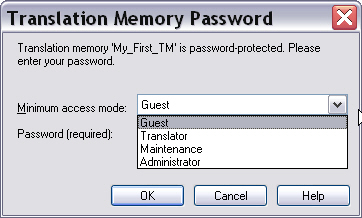
There are four different access levels for file based TMs:
- Administrator: Can perform any TM-related operation, i.e. read/write, change settings, import/export.
- Maintenance: Can perform operations such as global find/replace in a TM (but no change of TM settings and no import/export).
- Read/Write: This access level is typically used by translators, who need to be able to add/change TUs and search the TM.
- Read-only: Guest access that allows users to perform TM look-ups.
 Note Note |
|---|
Server TMs use a different, much more sophisticated and granular access rights model. |
 Setting Passwords Programmatically
Add a new class to your project, which you call TmProtector. Add a public function called AssignPasswords to your newly-created class, which takes the file name and path as parameter. This function can be called as shown below:
TMProtector objProtect = new TMProtector();
objProtect.AssignPasswords(_translationMemoryFilePath);public void AssignPasswords(string tmPath) { FileBasedTranslationMemory tm = new FileBasedTranslationMemory(tmPath); tm.SetAdministratorPassword("super"); tm.SetMaintenancePassword("maintain"); tm.SetReadWritePassword("translator"); tm.SetReadOnlyPassword("guest"); tm.Save(); this.OpenProtectedTm(tmPath, "super"); }
Open a Password-protected TMAdd the following function to your class, which opens the TM with the previously assigned administrator password. To open a password-protected TM, the password needs to be provided as a string parameter. Of course, you should catch any exception, e.g. in cases in which the wrong password was entered.
private void OpenProtectedTm(string tmPath, string password)
{
    try
    {
        FileBasedTranslationMemory tm = new FileBasedTranslationMemory(tmPath, password);
    }
    catch (Exception ex)
    {
        MessageBox.Show(ex.Message);
    }
}
Putting it All TogetherThe complete class should look as shown below:
namespace Sdl.SDK.LanguagePlatform.Samples.TmAutomation
{
    using System;
    using System.Windows.Forms;
    using Sdl.LanguagePlatform.TranslationMemoryApi;

    public class TMProtector
    {
        #region "assign"
        public void AssignPasswords(string tmPath)
        {
            FileBasedTranslationMemory tm = new FileBasedTranslationMemory(tmPath);

            tm.SetAdministratorPassword("super");
            tm.SetMaintenancePassword("maintain");
            tm.SetReadWritePassword("translator");
            tm.SetReadOnlyPassword("guest");
            tm.Save();

            this.OpenProtectedTm(tmPath, "super");
        }
        #endregion

        #region "openTMwithPW"
        private void OpenProtectedTm(string tmPath, string password)
        {
            try
            {
                FileBasedTranslationMemory tm = new FileBasedTranslationMemory(tmPath, password);
            }
            catch (Exception ex)
            {
                MessageBox.Show(ex.Message);
            }
        }
        #endregion
    }
}
CommunityComments