To add a terminology database
-
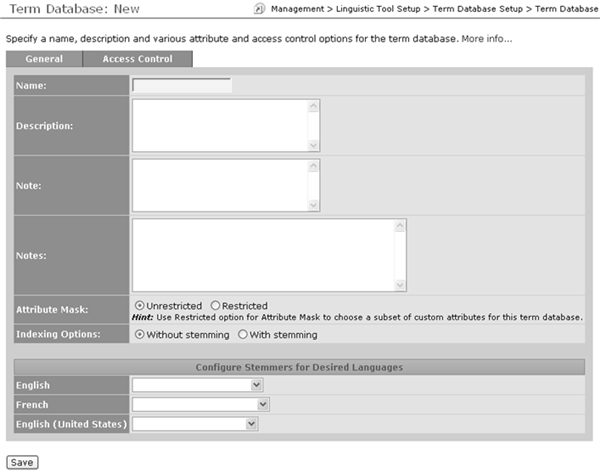
If you have uploaded any stemmers, select the indexing option to use.You can select Without Stemming (the default) or With Stemming. Without stemming, searches are sensitive to any variations in a word. Differences in tense (for example "laminate" vs. "laminating"), number (for example, "server" vs. "servers") or other inflections will prevent leverage of terms that do not match exactly. With stemming enabled, WorldServer will reduce these variations of a word to a common stem for searching purposes. This increases terminology leverage by eliminating inflectional differences in the words of a term.
-
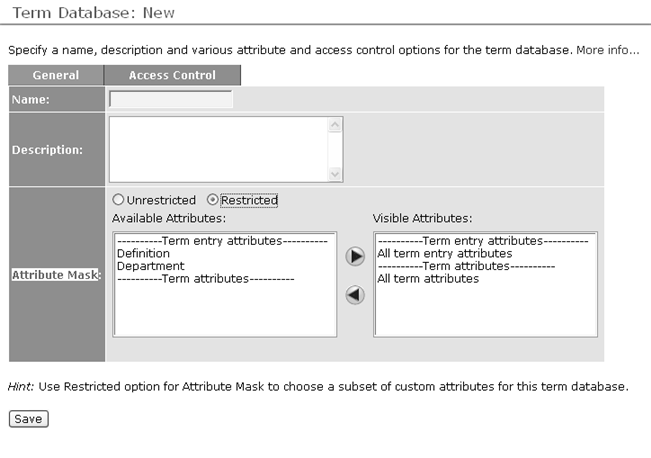
Either accept the default attribute mask (Unrestricted) or select Restricted mode.If you select the Restricted option, the attribute selection fields will appear, allowing you to select attributes that will be available when you import, add or edit terms.When searching an individual terminology database with attribute masking, only those attributes relevant to that term database are available for searching. This affects the advanced search filter and Freeform SQL search. When searching a TD Group, a superset of attributes relevant to its individual term databases is available for searching.
-
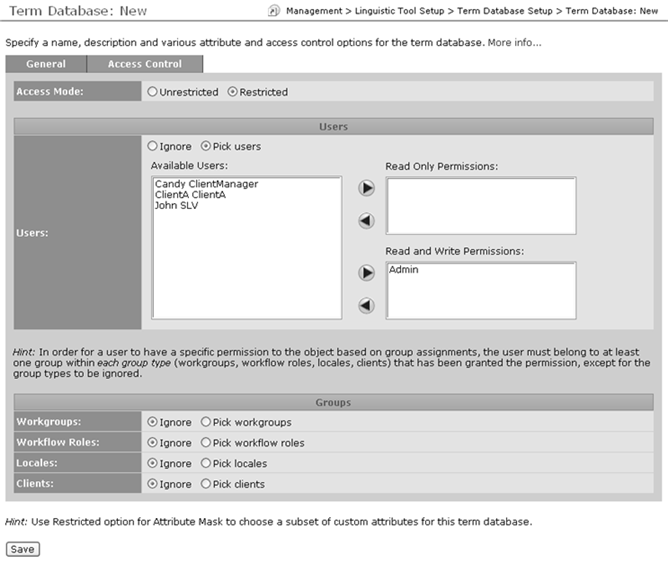
In the Access Control tab, you can configure the visibility and modifiability of individual term databases. By default, access control is disabled for the term database (Unrestricted) meaning that only user type privileges apply. The permissions selector fields are not visible. If you select the Restricted option, the permissions selector fields appear. These permissions control what users or groups have read or write access to specific term databases.
 Note: These permissions mask existing user type privileges. To browse a term database, your user type must have TD browse privilege and read permissions for that term database. Similarly, to be able to modify a term you must have TD modify privilege for your user type and write permissions for that term database.The Users section configures the user access controls. This section configures privileges for users in addition to those who receive permissions from the Groups section below it. In other words, users configured here are additive in relation to the group access controls.The lists in this Users section are:
-
Available Users – This is a list of all available users that have not been assigned permissions. For example, if the user is assigned to the read only permission, that user’s name will be removed from this list. To assign the user to the read and write permission, the user must be first moved back to this list, and then reassigned. Users cannot be assigned to multiple permission lists since the permissions are tiered. There will be an “All Users” entry that will be available from the list provided no users have already been assigned. This will allow all users to be given the permission without having to select and move each explicitly.
The Groups section contains the access control options for each supported user group. The control option settings assigned to each group in this section intersect to establish which users have the permissions in addition to those specified explicitly by the user assignments. There are four user group types in the Groups section: -