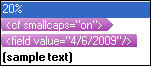
In the Editor window, when the cursor is at the point where you want to insert the recognized token, press Ctrl+,(comma). A drop-down list of available recognized tokens from the source segment is displayed.
This topic describes how to insert recognized tokens using the QuickPlace feature. Recognized tokens can include text formatting, tags, numbers, variables and dates.
In the Editor window, when the cursor is at the point where you want to insert the recognized token, press Ctrl+,(comma). A drop-down list of available recognized tokens from the source segment is displayed.
The first recognized token is selected automatically. In the source segment, the recognized token or formatted text is highlighted.
If this is the required recognized token, press Enter or Tab to insert the tag into the target segment. If the recognized token is one of a pair, a ghost tag is also inserted.
If this is not the recognized token you want to select, press Down Arrow to select another one from the drop-down list and then press Enter or Tab.
If the recognized token you selected is formatting and has a closing tag, continue typing. The selected tag formatting is applied to the text.
When you want the formatting to stop being applied or want to insert the closing tag, press Ctrl+,(comma). Select the sample formatted text or closing tag  and press Enter to insert it into the document.
In the Editor window, when the cursor is at the point where you want to insert the recognized token, right-click and select QuickPlace from the shortcut menu. A list of available recognized tokens from the source segment is displayed in the QuickPlace dialog box.
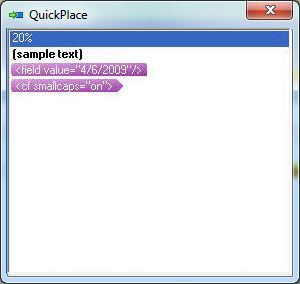
The first recognized token is selected automatically. In the source segment, the recognized token or formatted text is highlighted.
Double-click the recognized token you want to insert or select the recognized token and press Enter. If the recognized token is one of a pair, a ghost tag is also inserted.
If this is not the recognized token you want to insert, select a different recognized token and then insert the recognized token into the target segment.
If the recognized token you selected is formatting and has a closing tag, continue typing. The selected tag formatting is applied to the text.
When you want the formatting to stop being applied or want to insert the closing tag, right-click and select QuickPlace from the shortcut menu. The QuickPlace dialog box is displayed. Select the sample formatted text or closing tag press Enter to insert it into the document.