Use the Track Changes feature to track all changes made to a document. This is useful for a group of translators working on the same document to make revisions or for a reviewer to give feedback on a translation.
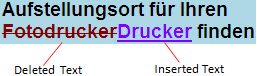
Text that is modified when Track Changes is on will appear as deleted or inserted in your document in Studio.
Tracked changes can appear in two locations in your document:
Source segments
Target segments
Tracked changes in the original source document are displayed in the source segments. However, these changes cannot be amended and new changes cannot be made in Studio.
NOTE |
Studio only supports working with tracked changes in the source for Microsoft Word 2007-2013 documents (.docx). To view source tracked changes in Studio, change the Track changes extraction mode setting to Display pending changes in the file type settings for Word 2007-2013 Settings. |
You can track the changes you make in translations in target segments. The translator can then choose to accept or reject tracked changes suggested by a reviewer in target segments. You can do this for one suggested change at a time or for an entire document.
When previewing documents that contain tracked changes, you can only see the tracked changes in the preview for Microsoft Word 2007-2013 documents (*.docx). For all other file types, tracked changes will appear as if they are accepted in the preview.
Why Tracked Changes in the Source are Useful
How to Track Suggested Changes
How to Accept or Reject Suggested Target Tracked Changes
How to Display Tracked Changes Details
How to Only Display Segments with Tracked Changes
How to Change When Track Changes is Automatically Turned On or Off