Overview: Screen Layout and Functionality
Views
The functionality of SDL Trados Studio 2014 SP1 and later is divided between these views:
View |
Description |
 Welcome
|
This
is where you can get started with quick links that enable you
to access frequently used functions. It also enables you to check
out the latest SDL Trados Studio videos, Help resources and information
on the latest product releases.
From here you can:
Create a new project Start translating
a single document Open packages and
GroupShare projects Access video tours
and tutorials, Help Resources and SDL Trados News Define default project
settings Upgrade translation
memories Align translated
documents in the SDL Alignment Tool Create AutoSuggest
dictionaries Open SDL MultiTerm
where you can create and maintain your termbases Localize software
in SDL Passolo Show the list of
keyboard shortcuts
Selecting any of these commands will switch you to the appropriate
view in Studio or open another application where you can perform
the action.
Click here
for more details. |
 Projects Projects
|
This
is where translation projects are created, tracked and managed.
You can select a project to view detailed project and file information
and track project and file status.
Click here
for more details. |
 Files Files
|
This
is where manage files and open files for translation. From here
you can:
You can also view word counts and translation progress for these
files. Click here
for more details. |
 Reports Reports
|
This
is where you view project reports. The reports provide detailed
translation analysis figures which feed directly into the project
planning and budgeting process.
Click here
for more details. |
 Editor Editor
|
This
is where documents are translated and reviewed. Studio helps you
to translate efficiently and consistently by leveraging existing
translations from translation memories. Studio also captures new
translations as they are created and can either add these to an
existing translation memory or create a new one.
The translation environment is bilingual; source language segments
and the segment translations are displayed side-by-side in a single
editor screen. Text is displayed in WYSIWYG format so you can
easily see whether formatting has been applied correctly. You
can apply formatting, insert tags and special characters from
the Ribbon tabs and you can preview the translation in real-time
in the Preview
window.
Click here for more
details. |
 Translation Memories Translation Memories
|
This is where you create, import and
manage translation memories.
You can also access the Alignment Tool from this view. The Alignment
Tool matches the segments in the legacy source language documents
with the translated segments in the target language documents
to determine which sentence pairs belong together. It then adds
these pairs to your specified translation memory.
Click here
for more details about all the actions that you can perform from
this view. |
 Alignment Alignment
|
This is where you review and correct
the results of the alignment that Studio performs automatically
when you align existing translated documents. For more information
about alignment, see Aligning
Existing Translated Files.
This view is only available when you open an alignment result
file (*.sdlalign). |
View Layout
Each view has the same basic layout:
-
Ribbon at the top of the view.
-
The navigation pane is on the left of the view.
-
The work pane is on the right of the view.
-
The view navigation buttons are at the bottom of the navigation pane.
-
The name of the currently displayed view is at the top of the navigation pane.
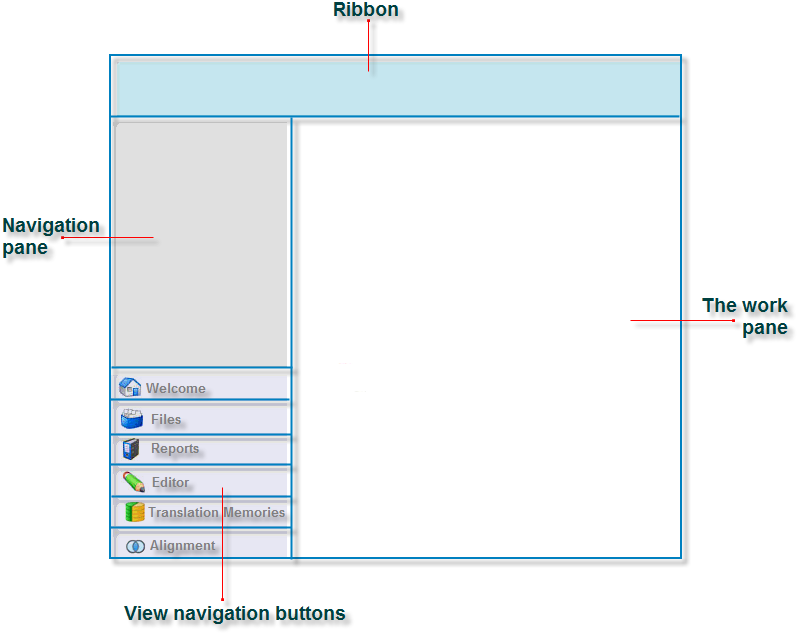
To display another view, click the appropriate view button or select the view from the View tab.
Navigation Pane
By default the navigation pane is expanded. To minimize the navigation pane, click the Minimize the Navigation Pane button  at the top of the navigation pane. To expand the navigation pane, click the Expand the navigation pane button
  . The display on the navigation pane changes depending on which view is selected:
-
The Projects view navigation pane is where you filter which projects are displayed in the work pane.
-
The Files view navigation pane is where you select the different language folders in the . Select a language from the drop-down list to display the language folders its subfolders in the navigation pane. Select a folder to display the list of files contained in that folder in the work pane.
-
The Reports view navigation pane is where you select reports to display in the work pane.
-
The Editor view navigation pane is where you select the documents that are currently open in the view. Each document appears as a branch in the navigation tree. Select a document from the tree to make it the active document and display it in the work pane.
-
The Translation Memories view navigation pane is where you select translation memories, translation memory templates and language resource templates that are currently available in the view. Each is displayed in a folder in the navigation tree. You can double-click on a translation memory to display it in the work pane and make it the .
Related Topics
About the Ribbon
Overview: Welcome View Screen Layout and Functionality
Overview: Projects View Screen Layout and Functionality
Overview: Files View Screen Layout and Functionality
Overview: Reports View Screen Layout and Functionality
Overview: Editor View Screen Layout and Functionality
Overview: Translation Memories View Screen Layout and Functionality