

| Implement the UI Controller Class |
In this chapter you will learn how to implement a class that controls the actual plug-in user interface.
When implementing control for the plug-in user interface, you need to cover the following scenarios:
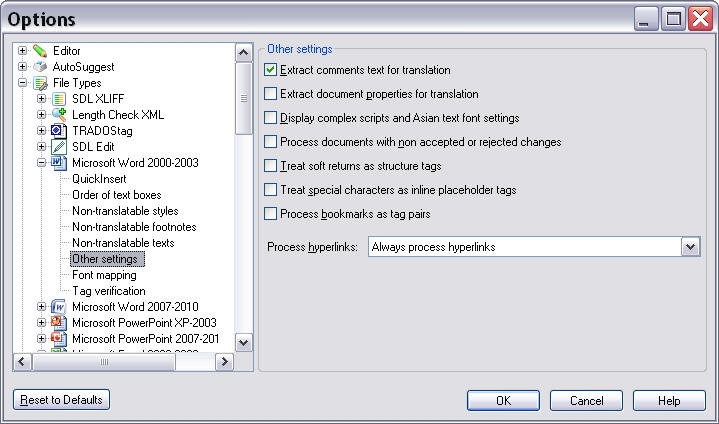
- The user clicks the Reset to Defaults button, thereby restoring all control elements to their intended default settings.
- The user clicks OK, thereby applying (saving) the settings.
- After changing the control element settings, the user goes to another settings page, which should also save any changes to the form control elements.
- The user clicks the Cancel button, any changes to the control settings should be discarded.
Below you see an example of a settings page as it is implemented for one of the default file types in SDL Trados Studio 2017:
 Implement the Settings Page Class
Add a class called e.g. SettingsPage.cs to your project. This is one of the classes that is referenced from the new File Type Component Builder that will be covered in a later chapter (see Extending existing File Type Component Builder), i.e. it is not the UI class itself that is referenced in the File Type Component Builder. Without this reference, the plug-in UI would not be recognized and displayed by SDL Trados Studio 2017.
This class acts as an intermediary between the plug-in UI (see Implement the User Interface) and the class that is used to store and retrieve the settings to/from the settings bundle (see Loading and Saving the Settings).
This class needs to use the following namespaces:
- Sdl.FileTypeSupport.Framework.Core.Settings
- Sdl.Core.Settings
- Sdl.Core.PluginFramework
First, create two objects based on the VerifierSettings class and on the user interface (i.e. SettingsUI) as shown below:
[FileTypeSettingsPage(Id="XMLVerifier_Settings", Name="Settings_Name", Description="Settings_Description")]
class SettingsPage : AbstractFileTypeSettingsPage<SettingsUI, VerifierSettings>
Reset to the Default SettingsAnother method provided by the base class is ResetToDefaults. It is triggered when the user clicks the button Reset to Defaults in the user interface.
In our implementation we override this method as shown in the example below. We call the ResetToDefaults method of the VerifierSettings class, and then update the user interface accordingly.
public override void ResetToDefaults()
{
    base.ResetToDefaults();
    Control.UpdateControl();
}
Refresh the SettingsWhen the user moves back to the settings page of our plug-in, we need to make certain that the plug-in UI is displayed with the most up-to-date settings from the settings bundle. This is done through the ReloadSettings method, which we override as shown below. Here, we call the base class which will populate the VerificationSettings for us.
public override void Refresh()
{
    base.Refresh();
    Control.UpdateControl();
}
Putting it all Togetherusing System; using System.Collections.Generic; using System.Linq; using System.Text; using Sdl.Core.Settings; using Sdl.FileTypeSupport.Framework.Core.Settings; namespace Sdl.Sdk.FileTypeSupport.Samples.XMLChecker { /// <summary> /// This class controls the plug-in user interface. It controls what happens, for example, /// when the user clicks the button in the user interface for resetting the control elements /// to their default values. This class is referenced in the file type definition. Without /// this reference in the SDLFILETPYE file, the plug-in user interface would not be available /// to the end user. /// </summary> #region "ClassDeclaration" [FileTypeSettingsPage(Id="XMLVerifier_Settings", Name="Settings_Name", Description="Settings_Description")] class SettingsPage : AbstractFileTypeSettingsPage<SettingsUI, VerifierSettings> #endregion { /// <summary> /// Triggered, when the user clicks the button Reset to Defaults button in /// SDL Trados Studio. Restores the default check box state, which should /// be Checked (i.e. verification function enabled). /// </summary> #region "ResetToDefaults" public override void ResetToDefaults() { base.ResetToDefaults(); Control.UpdateControl(); } #endregion /// <summary> /// Triggered when the user raises the plug-in UI, whose controls (in this case the check box) /// will then be set according to the values stored in the settings bundle. /// </summary> /// <param name="settingsBundle"></param> #region "ReloadSettings" public override void Refresh() { base.Refresh(); Control.UpdateControl(); } #endregion } }
See AlsoOther Resources
CommunityComments