

| Create a New Project |
In this chapter you will learn how to properly set up a project for developing a verification plug-in that works on the native file format.
 Create the Project
After launching Visual Studio 2010 choose to create a new SDL Trados Studio 2017 Plug-in Project, and give it an appropriate name, e.g. Sdl.Sdk.FileTypeSupport.Samples.XMLChecker. The instructions for creating a SDL Trados Studio 2017 Plug-in Project are described in the SDL Plug-in Framework SDK under SDL Trado Studio > Building a Plug-in
SDL Trados Studio 2017 Plug-in Project produces a SDL Plug-in Package (*.sdlplugin). This needs to be manually deployed or copied to the SDL Trados Studio Plug-in Packages directory so that SDL Trados Studio can use the plug-in. See SDL Plug-in Framework SDK under SDL Trado Studio > Plug-in Deployment.
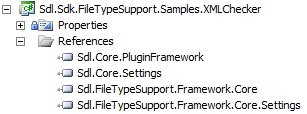
Add the Required ReferencesNext add the references from the SDL File Type Support Framework APIs. These are contained in the following assemblies:
- Sdl.FileTypeSupport.Framework.Core.dll: This is the main reference to the SDL File Type Support Framework API
- Sdl.FileTypeSupport.Framework.Core.Settings.dll
- Sdl.Core.Settings.dll
- Sdl.Core.PluginFramework.dll
By default you find these files in the SDL Trados Studio 2017 installation folder, usually C:\Program Files\SDL\SDL Trados Studio\Studio5. The Copy Local property for these references should be set to True.
 CommunityComments