

| Adding Language Resources |
In this chapter you will learn how to add languages resources such as custom abbreviations and variables to a translation memory. For more information on what language resources are, please see Configuring Translation Memories.
 Add a New Class
Add a new class called TmLanguageResources to your project. Let us assume that you would like to add a number of variables and custom abbreviations to your TM. Remember that variables are used to mark up particular strings such as product names as placeables. With custom abbreviations you can prevent the system from interpreting the dot following an abbreviation as a full stop, and thus as a segment delimiter. A TM includes a list of common abbreviations for each language by default (for example U.S., ref., etc.). Below you see an example of the English abbreviations list that a TM includes by default:
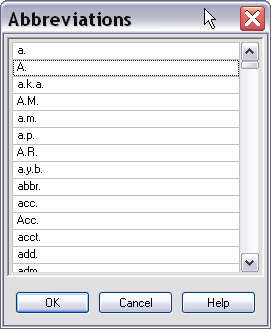
This default list can be expanded with custom abbreviations to further fine-tune the segmentation. Note that there is no default variable list, i.e. the variable list for each TM that you create is empty by default.
Add a function called AddResource to your class, which takes the TM file name and path as string parameter. This function can be called as follows:
TMLanguageResource objResource = new TMLanguageResource();
objResource.AddResource(_translationMemoryFilePath);FileBasedTranslationMemory tm = new FileBasedTranslationMemory(tmPath);DefaultLanguageResourceProvider defaultBundle = new DefaultLanguageResourceProvider();LanguageResourceBundle newBundle = defaultBundle.GetDefaultLanguageResources(CultureInfo.GetCultureInfo("en-US"));FileBasedTranslationMemory tm = new FileBasedTranslationMemory(tmPath);newBundle.Abbreviations = new Wordlist(); newBundle.Abbreviations.Add("hr."); newBundle.Abbreviations.Add("cont.");
 Note Note |
|---|
Abbreviations are case-sensitive. |
newBundle.Variables = new Wordlist();
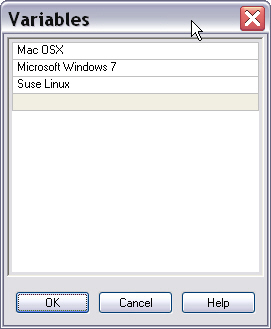
newBundle.Variables.Add("Mac OSX");
newBundle.Variables.Add("Microsoft Windows 7");
newBundle.Variables.Add("Suse Linux");

tm.LanguageResourceBundles.Add(newBundle);
tm.Save();
When you open the TM in SDL Trados Studio 2017 and view the language resources, the variable list will look as shown in the following screenshot:
Putting it All TogetherThe complete class should now look as shown below:
namespace Sdl.SDK.LanguagePlatform.Samples.TmAutomation
{
    using System.Globalization;
    using Sdl.LanguagePlatform.Core;
    using Sdl.LanguagePlatform.TranslationMemoryApi;

    public class TMLanguageResource
    {
        public void AddResource(string tmPath)
        {
            #region "open"
            FileBasedTranslationMemory tm = new FileBasedTranslationMemory(tmPath);
            #endregion

            #region "default"
            DefaultLanguageResourceProvider defaultBundle = new DefaultLanguageResourceProvider();
            #endregion

            #region "newBundle"
            LanguageResourceBundle newBundle = defaultBundle.GetDefaultLanguageResources(CultureInfo.GetCultureInfo("en-US"));
            #endregion

            #region "abbreviations"
            newBundle.Abbreviations = new Wordlist();
            newBundle.Abbreviations.Add("hr.");
            newBundle.Abbreviations.Add("cont.");
            #endregion

            #region "variables"
            newBundle.Variables = new Wordlist();
            newBundle.Variables.Add("Mac OSX");
            newBundle.Variables.Add("Microsoft Windows 7");
            newBundle.Variables.Add("Suse Linux");

            tm.LanguageResourceBundles.Add(newBundle);
            tm.Save();
            #endregion
        }
    }
}
See AlsoCommunityComments