Adding and Modifying a Translation Memory
Management > Linguistic Tool Setup > Translation Memory Setup > Translation Memory
Management > Linguistic Tool Setup > Translation Memory Setup > Add
A translation memory(“TM”) is a database of segments and their translations.
Setting up Translation Memories
You can use the default WorldServer translation memory for all your assets, or you can create multiple translation memories to meet different needs. Set up translation memories in Management > Linguistic Tool Setup > Translation Memory Setup .
If you are using multiple translation memories, be sure to set the translation memory property for your top-level target assets in Management > Asset Interface System > View and Change Properties . Users can also manipulate some default settings for translation memory matches by going to Tools > Personal Preferences on the client machine.
To add a translation memory
The translation memory definition page has two tabs. The General tab includes:
  • TM Name
  • A description
  • Whether to allow reverse leverage
  • Whether to have an attribute mask, and if so, what attributes to mask
  • If available, stemming options
The other tab—Access Control—enables you, if you choose Restricted mode, to assign Read/Write permissions for the TM to individual users and groups.
  1. From Management > Linguistic Tool Setup > Translation Memory Setup , click Add.
    Figure 22: Adding a Translation Memory
  2. Type a name and description.
  3. Choose whether to enable reverse leveraging. With reverse leveraging enabled, you can leverage from both source to target language and from target to source language. If you have some content that is being translated, for example, from English to German and other content being translated from German to English, and if the two pieces of content share similar domains, then you can get fuzzy matches from a TM when you use the reverse leverage.
  4. Either accept the default attribute mask (Unrestricted) or select Restricted mode. If you select the Restricted option, the attribute selection fields will appear, allowing you to select TM entry attributes to be available when you edit TM entries.
  5. If you have uploaded any stemmers, select the indexing option to use.
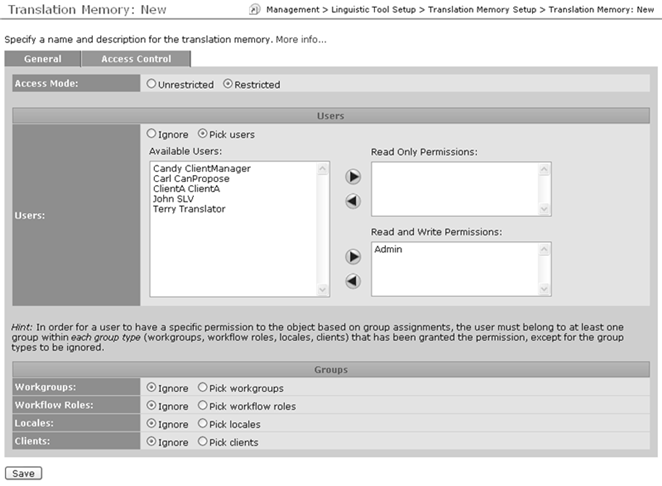
  6. In the Access Control tab, you can configure the visibility and modifiability of individual TMs. By default, access control is disabled for the TM (Unrestricted) meaning that only user type permissions apply. The ACL permissions selector fields are not visible. If you select the Restricted option, the ACL permissions selector fields appear. These permissions control what users or groups have read or write access to specific TMs.
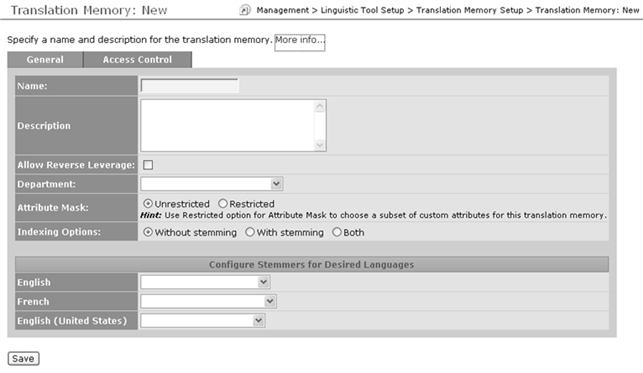
    Figure 23: Setting Access Controls for a TM
  7. Click Save.
To modify a translation memory
  1. From Management > Linguistic Tool Setup > Translation Memory Setup , click the translation memory name link.
  2. Modify the Name or Description information as needed.
  3. Click Save.
Child Topics
Translation Memory Reverse Leveraging
TM Entry Attribute Masks
Stemming
Translation Memory ICE Control Options and Penalties
Translation Memory Security
Parent Topic
Translation Memory Setup