Importing a Terminology Database
You can import files of the following formats into a WorldServer terminology database: The import file can either be an exported terminology database file that has been modified or a new file containing new TD entries. If you are importing a new file, you may need to create custom attributes (in Management > Administration > Customization ) to ensure you import all the information from the database.
To Import a Simple Delimited File Format File into WorldServer
If you have terminology data in a simple format CSV file, you can import this data into a WorldServer term database. You may need to fix up any unusual data in your spreadsheet, because WorldServer cannot handle all possible glossary conventions. For example, “do not translate” or “translate when necessary” instructions are not handled. For the former, you can replicate the normative text across all locale columns. Any style and usage notes embedded in the translated text should be deleted or moved to a notes column, where they can be imported into an attribute.
  1. From the term management screen at Tools > Term Databases > Term Database: <TD> , click Import TD....
  2. Select the Delimited File: Simple Format option, the CSV file to import, the encoding, term and field delimiters, and whether to use each term's existing status or to assign a selected status to every term.
    • Import file – The file being imported must adhere to the delimiters you specify (see below).
      Note: In releases prior to WorldServer 9.0, WorldServer required that simple format files be comma-delimited. You can now import simple format files that have other field delimiters besides commas.
    • Encoding – This is the encoding that will be applied to the imported terms.
    • Delimiter –
      • Term Delimiter – A term delimiter is a single character that separates two or more terms that occupy a single field in the Delimited File. If two or more terms occupy the same field then it is assumed that they belong to the same language. The term delimiter is optional. By default, there is none and there is only one term per field. The supported term delimiters are none (the default), newline, &, @, %, #, *, | ,, !, $, and ^.
      • Field Delimiter – A field delimiter character is a single character that serves as a marker to separate column fields. The supported field delimiters are ,, tab, space, |, ;, and :.
      The term and field delimiters may be the same or different characters. In the case where they are the same character, it is assumed that the object responsible for writing the delimited file data will use double quotes to handle these embedded characters.
      For example, if the | character is used as both the term delimiter and the field delimiter, then the delimited file should look like this:
      English (United States)|French (France)|Context
      
      Hello|"Bonjour|Allo"|A simple greeting
      Goodbye|"Au revoir|A bien tot"|Parting words
      If a term delimiter is contained in term text, use a backslash (\) as an escape character.
      You may also define a field delimiter. This is useful if you need to create a tab-delimited file from Excel using Unicode. Excel cannot write out Unicode content to a CSV file. Therefore, you cannot use Excel to generate a reasonable CSV file. Excel can, however, write Unicode content out to tab-delimited files.
    • Import status – Choose whether to import each term's existing status or assign a selected status to every term. For details, see the topic on "Importing Term Statuses."
  3. Click Next >>. WorldServer displays a partial preview of the spreadsheet's first rows.
  4. In the Import Delimited File: Simple Format into Term Database <TD> (Step 2 of 3) page, select the row that contains the column headers of the import grid. Click Next >>.
    WorldServer reads the column headers and displays the header matching page (Import Delimited File: Simple Format into Term Database <TD> (Step 3 of 3)).
  5. In the Import Delimited File: Simple Format into Term Database <TD> (Step 3 of 3) page, match the column headers to your terminology database's languages and term and term entry attributes.
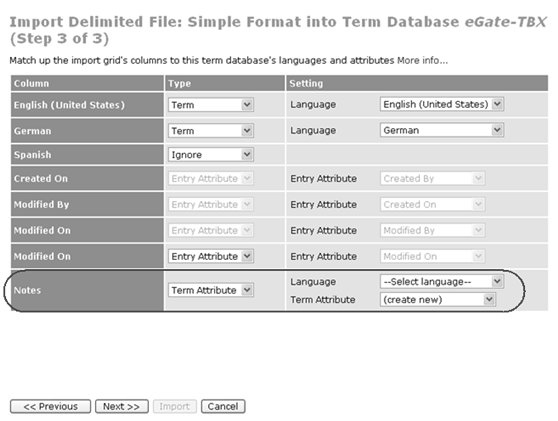
    In this page, the cells of the header row of the delimited file have been converted into rows with three columns: Column (containing the languages and attributes), Type, and Setting. WorldServer tries to guess a column's language or attribute based on the column name.
    You can match the Column rows to the corresponding languages, term entries, and term attributes in your term database. For language rows, you simply select Term for Type, then the language in the Setting column drop-down.
    For entry attribute rows, you select Entry Attribute for Type, then the attribute in the Setting column drop-down. You can also create a new entry attribute by selecting (create new) then clicking the Next button, which causes an entry attribute editor to display.
    For term attribute rows, you select Term Attribute for Type, then the attribute and its language in the Setting column drop-downs. You can also create a new term attribute by selecting (create new) then clicking the Next button, which causes a term attribute editor to display. If you select Term Attribute in the Type column, Language and Term Attribute drop-down menus appear in the Setting column.
    Here is an example of this result:
    Figure 36: Term Attribute Causing Language and Term Attribute Drop-downs to Display
    All unrecognized columns are initially be of type Ignore, meaning WorldServer ignores them on import.
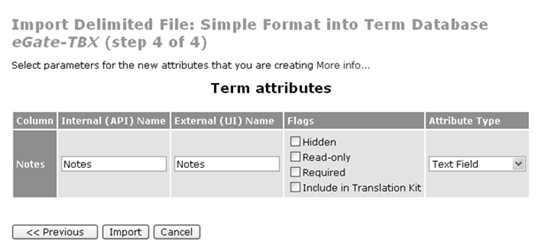
    The Entry Attribute and the Term Attribute value in the Setting column default to (create new). Continuing the example from the previous step, if you do not have an existing attribute to use for the "Notes" field (which was picked up from the file we are importing from), you can create one by clicking Next >>. When you do so, the following dialog displays:
    Figure 37: Creating a Term Attribute
    Not all attribute types are offered: the Multi Selector and Attachment attribute types, for example, do not make sense in the context of the glossary grid format.
    The following attribute types are available:
    • Boolean: – Recognized values are true and false.
    • Comment: – Produces a box in which to enter comments.
    • Date:– Requires the format dd.MM.yyyy - HH:mm:ss format.
    • HTML: – Causes HTML you enter to render.
    • Integer: – The cell content is interpreted as an integer.
    • Selector: – The cell content must match one of the valid selector values configured for that attribute.
    • Text area, text field: – The cell content is interpreted as plain text.
    • URL:– Causes URL formats you enter to be active.
    • User: – The cell content is interpreted as a user name. It must be a valid user.
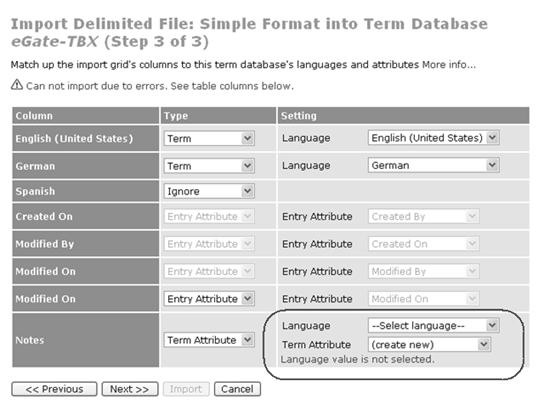
    Because, in this example, we have not selected a language for the "Notes" term attribute, when we click Import, we get a message telling us to do so:
    Figure 38: Error due to not selecting a language for a term attribute
  6. Click Import. WorldServer imports the delimited file.
The results page displays the number of term entries imported as well as any errors that may have been encountered.
The Delimited File: Simple Format import performs the following steps:
  • Imports each row with content as a term entry in the term database.
  • Each column corresponds to either a WorldServer locale or a term entry attribute, depending on choices made before importing.
  • Duplicate detection: WorldServer only compares terms and attributes in an entry for which there is a corresponding column in the glossary being imported. If they match, the row is treated as a duplicate even if the term entry has a superset of the terms in the import data.
  • A cell that consists only of non-word characters (for example, punctuation) will be treated as if it were empty.
  • Ignores empty cells.
Creating a Simple Format CSV File
WorldServer does not import Excel format spreadsheets directly, so before import, you must export your Excel glossaries using the Microsoft Excel CSV export functionality. That is, simply perform an Excel Save As, specifying the CSV format. This creates a Simple Format CSV file, which can be imported in the Delimited File: Simple Format mode.
For terms in languages not representable in the Latin-1 character set, the resulting CSV file cannot be imported by WorldServer. When you save your Excel glossary as CSV, Excel saves it in the default (or current) encoding installed on your operating system, which is likely to be unable to handle all possible characters. If the native encoding is Latin-1, the resulting CSV encoding is not sufficient to represent non-European languages like Japanese. Moreover, Excel—through version 2003—does not offer the option of setting a different character encoding for the CSV export. By the time WorldServer gets the CSV file for import, the file is corrupt. You need an alternative way to export glossaries in non-Latin-1 languages into CSV without corrupting the terms.
One way to create a Simple Format CSV File from an Excel file, if you need a Unicode encoding, is the following:
  1. Open your Excel file containing your terminology information.
  2. Save the file as the Unicode Text File <filename>.txt.
You can then import the file, specifying the field delimiter as tab, because Excel saves the file as tab delimited.
You also can create Simple Format CSV files when you export a terminology database selecting the Delimited File: Simple Format option.
Alternative CSV Creation
An alternative approach is to export from the Calc spreadsheet program from OpenOffice.org and specify Unicode encoding:
Note: OpenOffice 2.0.2 is a free download from http://www.openoffice.org.
  1. Open the Excel glossary in OpenOffice's Calc.
  2. Select File > Save As .
  3. Select Save As type: Text CSV (.csv), and check the Edit filter settings check box.
  4. Click your way to the field options dialog, where you have an option to set the Character set. This is Windows-1252 by default, but you should select a Unicode encoding like UTF-8.
  5. Click OK. You have exported an Excel glossary to CSV in a Unicode encoding.
Note: If you are using Japanese Windows, Excel exports in SHIFT-JIS for Japanese CSV, so you can just Save As CSV.
To import an Advanced Format CSV File into WorldServer
When you import a CSV Advanced Format file you can:
  • Match both languages and attributes in the import files to WorldServer counterparts, or ignore them.
  • Create new attributes on the fly.
The field and index matching and attribute creation screens are the same ones used for the simple CSV format, with the following differences:
  • The header row selection is specific to the simple CSV format and is not offered for these formats.
  • You select the file's encoding only at the field matching page, not at the file selection page.
  • These formats identify which fields are terms, entry attributes or term attributes. Consequently, you do not need to identify their type.
  • System attributes are recognized and cannot be remapped.
  1. From the term management screen at Tools > Term Databases > Term Database: <TD> , click Import TD....
  2. Select the CSV: Advanced Format option and the CSV file to import. Also, select an Import status. You can choose whether to import each term's existing status or to assign a selected status to every term. For details, see the topic on "Importing Term Statuses."
  3. Click Next >>. The index matching page displays — Import CSV Entries into Term Database <TD>(Step 2 of 2).
    Note: You can create a new attribute by selecting (create new) for a term or entry attribute. This brings up the new attribute editor—Import CSV: Advanced Format into Term Database <TD> (Step 3 of 3)—when you click Import. Configure the appropriate attribute types.
  4. Match both languages and attributes in the import files to WorldServer counterparts, or ignore them. Click Import.
    WorldServer imports the CSV file. You are done.
The results page displays the number of term entries imported as well as any errors that may have been encountered.
To import a MultiTerm WorldServer File into WorldServer
Before importing the MultiTerm database into WorldServer, you must prepare the MultiTerm database for export out of TRADOS. When importing a MultiTerm terminology database file, you must specify the language mapping of TRADOS MultiTerm indexes to WorldServer languages.
The help topic Importing a TRADOS MultiTerm Terminology Database explains how this is done: when exporting, you specify to TRADOS MultiTerm the idiom.mdx file provided in the WorldServer home directory, that tells it how to export its terminology database in a format that WorldServer understands.
To import a TBX File into WorldServer
When you import a TBX format file, you can:
  • Match both languages and attributes in the import files to WorldServer counterparts, or ignore them.
  • Create new attributes on the fly.
  1. From the term management screen at Tools > Term Databases > Term Database: <TD> , click Import TD....
  2. Select the TBX option and the TBX file to import. This file can be in a zip file. Also, select an Import status. You can choose whether to import each term's existing status or to assign a selected status to every term. For details, see the topic on "Importing Term Statuses."
  3. Click Next >>. The field and language matching page displays—Import TBX Entries into Term Database <TD>(Step 2 of 2). This screen allows you to select the languages and attributes that correspond to the import file. The language drop-down only shows choices if there is some ambiguity as to the country. That is, a language of EN might map to US or UK English.
    Note: You can create a new attribute by selecting (create new) for a term or entry attribute. This brings up the new attribute editor—Import TBX into Term Database <TD> (Step 3 of 3)—when you click Import. Configure the appropriate attribute types.
    XCS (eXtensible Constraint Specification) is the TBX way of specifying constraints on metadata. It lists languages, data category names and permissible picklist values for a termbase file. In WorldServer terms, XCS lists the languages, attribute names and selector attribute values of a term database. TBX specifies a default XCS file with data category information based on a selection from ISO 12620, which in turn attempts to define a standard list of data category names and definitions. Having a substantial standard list to choose from gives terminology users a common vocabulary, greatly improving interoperability and blind interchange. WorldServer takes advantage of this common vocabulary where possible.
    In this Import TBX into Term Database <TD> (Step 3 of 3) screen, you can create attributes on the fly to match data categories in the TBX import file that do not yet have a WorldServer equivalent. If these data categories are present in the default XCS file, WorldServer attempts to create attributes that correspond to its knowledge of these data categories. If the data category has a picklist data type, WorldServer prepopulates the attribute creation dialog with a selector attribute, its values already prefilled with the default XCS' definitions. Other data categories result in text fields. TBX import does not read the incoming TBX file's companion XCS file or enforce its constraints.
  4. Match both languages and attributes in the import files to WorldServer counterparts, or ignore them. Click Import.
    Note: Because TBX format is XML and the encoding is stored in the prolog, you do not need to specify the encoding.
    WorldServer imports the TBX file. You are done.
Child Topics
CSV Formats
TBX Conventions
Parent Topic
Working with Terminology Databases